
Omron NS12 Troubleshooting Common Problems and Error Codes: Complete Expert Guide
Omron NS12 Troubleshooting Common Problems and Error Codes: Complete Expert Guide
Table of Contents
The Omron NS12 is a robust 12.1-inch TFT HMI widely used in industrial automation for machine control, monitoring, and operator interfaces. Like any long-serving panel, it can develop issues over time—system program corruption, communication failures, unresponsive touchscreens, backlight problems, or boot failures.
This comprehensive guide consolidates practical troubleshooting steps drawn from official Omron NS-series manuals, real-world recovery procedures, and field experiences from technical forums. Whether you maintain a single machine or an entire production line, understanding these common faults can significantly reduce downtime.
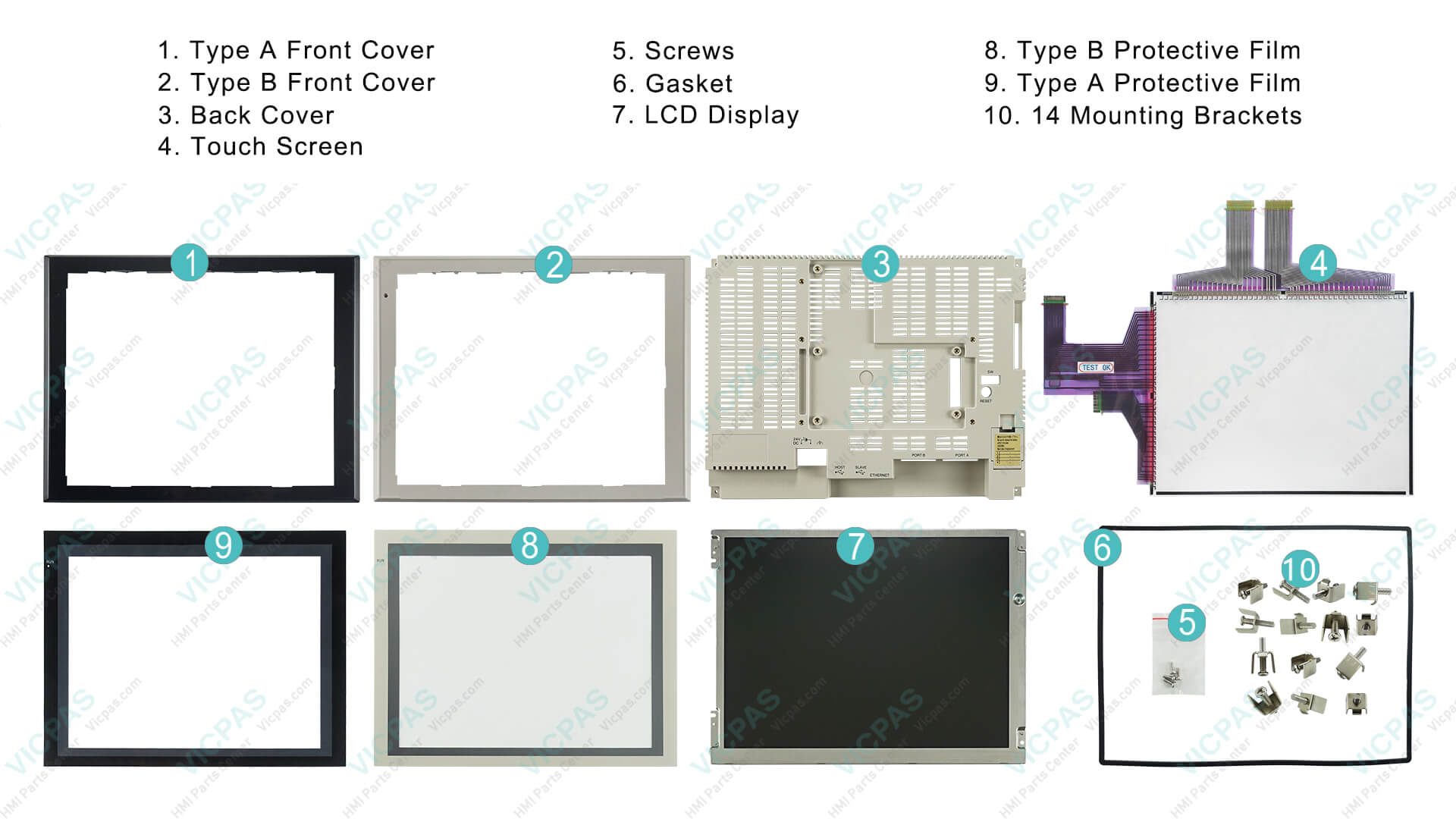
At VICPAS, we have specialized in HMI repair parts for over 20 years. We supply high-quality replacement touchscreens, LCD displays, protective overlays, plastic housings, and complete repair kits specifically for the Omron NS12 series (including NS12-TS00-V2, NS12-TS01B-V2, NS12-TS00B-V2, NS12-TS01-V1, and related models). All parts come with a 365-day warranty, fast worldwide shipping, and full technical support.
Common Omron NS12 Faults and Quick Diagnosis
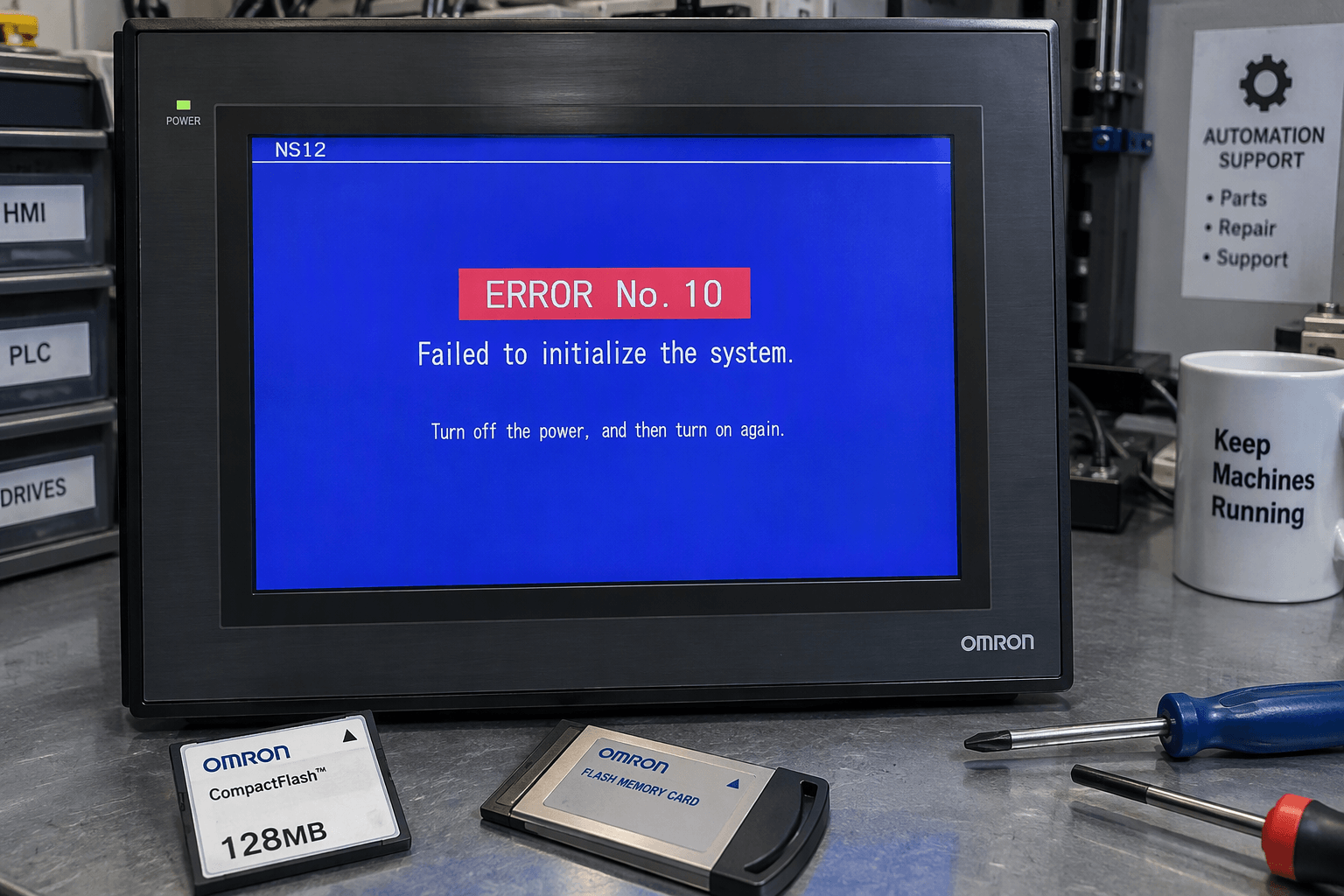
1. ERROR No. 10 – File System Error / System Program Corruption
Symptom: On power-up the screen shows:
“ERROR No. 10: Fail in loading files or executing programs: Please recover the system program”
or a black screen with only the orange STATUS LED lit.
Root Causes (based on Omron documentation and field reports):
- Accidental deletion or corruption of files in the /fr0 system partition (contains OS9 kernel and boot files).
- Incorrectly formatted CompactFlash (CF) card (Windows often defaults to FAT32; NS-series requires FAT16).
- Mixing system images between NS12-V1 and NS12-V2 hardware.
- Failed recovery attempts or incompatible recovery versions.
Recovery Procedure (recommended steps):
- Obtain the correct RecoverUpdate files (version 7.0 or preferably 8.2) from your CX-Designer installation folder or MyOmron.
- Use a new CF card (128 MB–2 GB recommended) that has never been formatted in modern Windows. Format it as FAT16 if necessary.
- Copy the required folders (bank1, bank2, bank3, OS9, Other) and files (os9kboot, os9000bt) to the root of the CF card.
- Insert the card, power on the NS12 with all DIP switches OFF, and allow the recovery process to complete.
- After recovery, reconfigure system settings and reload your project.
When recovery fails: Internal system ROM or flash memory may be damaged. In these cases, hardware replacement is often the fastest and most reliable solution.
2. Communication Errors (MRES=05, SRES=01 and Similar)
Common Message: “Communication error detected while writing… Allocation Host: HOST3 – MRES=05, SRES=01” (No destination address set in routing table).
Typical Scenarios:
- Replacing a CJ1M or similar PLC with a newer revision unit that has different default routing table settings.
- Incorrect Host configuration, node numbers, network addresses, or FINS parameters in CX-Designer.
- Ethernet or serial wiring issues, firewall blocking UDP 9600, or mismatched protocol settings.
Troubleshooting Steps:
- Upload the complete project (including routing tables) from the original working PLC and download it to the replacement unit.
- Verify Host registration, conversion tables, IP addresses, node numbers, and FINS ports in CX-Designer.
- Perform communication tests from the NS12 System Menu.
- Check physical cabling, LED indicators, and network settings.
3. Touchscreen Unresponsiveness or Dead Zones
Common causes include membrane degradation, controller board issues, or physical damage. Calibration may help temporarily, but permanent solutions usually require touch panel replacement.
4. Backlight Failure / Dim or Dark Display
The LCD backlight inverter or the LCD module itself fails over time. Replacement of the display assembly restores full brightness and readability.
5. Power Supply, Boot Loops, or Hardware Check Failures
FATAL ERROR No. 01 (Touch Panel not connected), No. 02 (SRAM Initialization Error), or No. 03 (MAC Address Error) often indicate hardware-level problems that require professional diagnosis or part replacement.
Official Error Code Reference Summary
Drawing from the NS Series Programming Manual (Section 5 – Troubleshooting and Maintenance):
- ERROR No. 10: System program load failure → Recover with CF card.
- ERROR No. 11: Device check / SRAM / IP address program errors → Reinstall system program.
- ERROR No. 12: Font loading failure or system program incompatible with hardware → Use correct recovery image.
- Communication errors (MRES/SRES codes): Check routing tables, Host settings, and network configuration.
- Power-on and startup errors: Verify power supply, battery, and memory card.
Always refer to the official Omron NS Series Setup Manual and Programming Manual for the most complete tables.
When to Replace Parts Instead of Continuing Software Recovery
Software recovery works in many cases, but repeated failures, physical damage, aging components, or critical production downtime often make hardware replacement the smarter choice.
VICPAS stocks a full range of Omron NS12 repair parts, including:
- Touchscreen glass and overlays
- LCD display modules
- Protective films
- Plastic front/rear housings and cases
- Complete repair kits for models such as NS12-TS00-V2, NS12-TS01B-V2, NS12-TS00B-V2, NS12-TS01-V1, NS12-KBA04, NS12-KBA05, and more
All VICPAS parts are thoroughly tested, carry a 365-day warranty, support urgent worldwide shipping (DHL, UPS, FedEx, TNT), and have no minimum order quantity. We also offer customization for hard-to-find or obsolete components.
Browse our complete Omron NS12 inventory
Learn more about VICPAS and our quality commitment
Preventive Maintenance Tips for Longer NS12 Life
- Always use high-quality, properly formatted CF cards.
- Avoid mixing V1 and V2 system images.
- Maintain clean power supplies and good grounding.
- Keep backups of both project data and system programs.
- Periodically inspect the touchscreen and backlight performance.
Need Expert Help or Genuine Replacement Parts?
If your Omron NS12 is showing persistent errors, recovery attempts are failing, or you need reliable touchscreen, display, or housing replacements, the VICPAS team is ready to assist. With over two decades of specialized experience in HMI parts, we help industrial users minimize downtime and keep production running smoothly.
Contact us today for a fast quote, technical advice, or to check stock on NS12 series parts.
VICPAS – Your Trusted Partner for Omron NS12 and Complete HMI Repair Solutions
Email: sales@vicpas.com | Phone: +86-13763341328
Website: https://www.vicpas.com
References
- Omron NS12 ERROR No. 10 Fix: System Recovery Guide – Industrial Monitor Direct
- Omron NS HMI Error 10: File System Recovery Fix Guide – Industrial Monitor Direct
- Fix Omron NS12-V1 System Error #10 Recovery (NS12-V2 Image) – Industrial Monitor Direct
- Problem recovering system of NS12 – MrPLC.com Forum
- Problem with NS recovery update on NS12-V1 – MrPLC.com Forum
- NS Series Programming Manual – Error Messages (Section 5)
- NS12 PDF Manual – Troubleshooting and Maintenance
- OMRON CJ1M-CPU13 NS12-TS01B Communication Error Fix – Industrial Monitor Direct
- OMRON CJ1M-CPU13 integration issue with NS12-TS01B – PLCtalk Forum
- Section 5 Troubleshooting and Maintenance – NS Series Programming Manual
This guide is intended for informational and educational purposes. Always follow proper safety procedures and consult official Omron documentation when performing recovery or maintenance work. For complex hardware failures, professional repair or genuine replacement parts from experienced suppliers like VICPAS are recommended.
 Fast Quote
 Fast Quote
 Worldwide Shipping
 12 Months Warranty
 Customize Service
- Phone
- *Title
- *Content
