
Troubleshooting Siemens OP277 6 Common Issues: Expert Guide
Troubleshooting Siemens OP277 6 Common Issues: Expert Guide
Comprehensive step-by-step solutions for the most frequent problems with Siemens SIMATIC HMI OP277 6
Table of Contents
- 1. Siemens OP277 6 Connection Problems
- 2. Siemens OP277 6 Transfer Failure (WinCC Flexible)
- 3. Siemens OP277 6 Date & Time Issues
- 4. Siemens OP277 6 Screen Blank / Display Failure
- 5. Siemens OP277 6 Keypad Not Working
- 6. Siemens OP277 6 OS Update / Firmware Issues
- 7. Additional Common Siemens OP277 6 Issues
- Conclusion: Keep Your Siemens OP277 6 Running at Peak Performance
- References
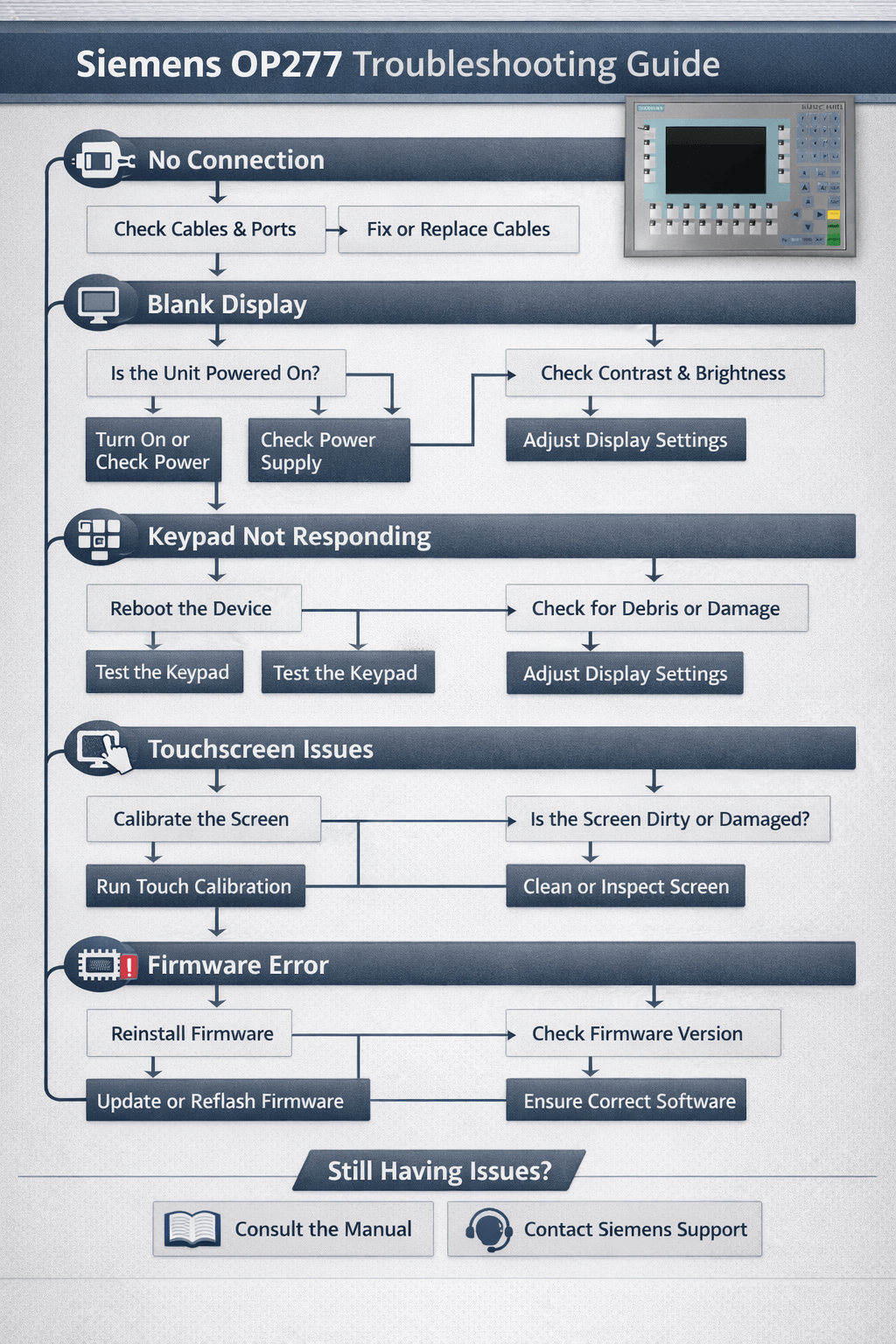
The Siemens OP277 6 (SIMATIC HMI OP277 6") is a robust 6-inch operator panel widely used in industrial automation for machine control and monitoring. However, users frequently encounter issues such as connection failures, project transfer errors, date/time resets, blank screens, keypad malfunctions, firmware problems, and runtime errors.
This detailed troubleshooting guide is compiled from real-world cases on Siemens support forums, PLCtalk.net, MrPLC, and hands-on field experience. At Vicpas, we have over 20 years of expertise supplying high-quality, fully tested replacement parts for Siemens HMI panels, helping customers reduce downtime and costs.
If your Siemens OP277 6 needs new parts, explore our compatible replacements here.
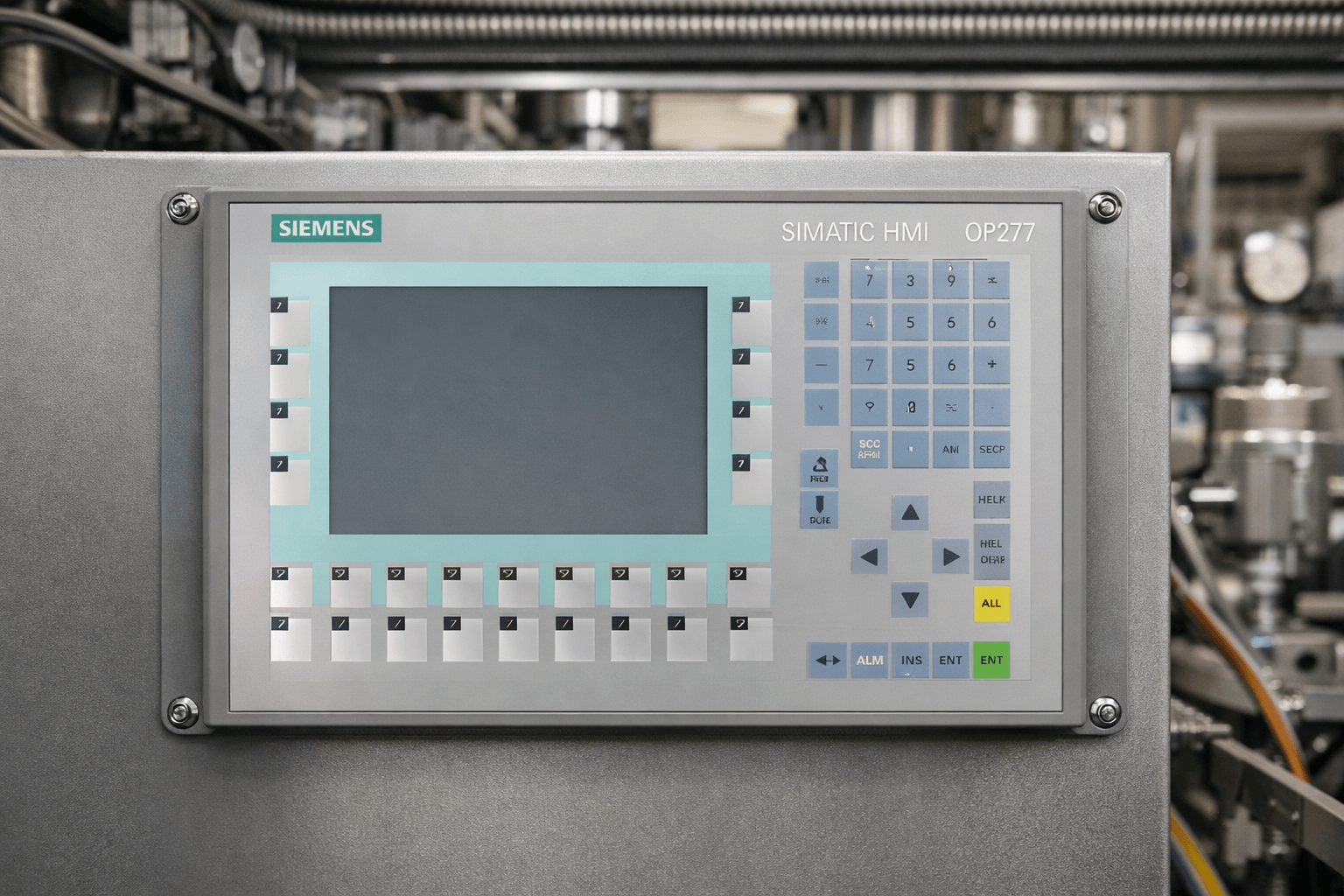
1. Siemens OP277 6 Connection Problems
Symptoms
No communication with the PLC, intermittent connection drops, failure to connect via MPI, PROFIBUS, or Ethernet, or error messages indicating communication timeout.
Common Causes
Incorrect node addresses, baud rate mismatch, faulty cables or connectors, wrong PG/PC interface settings in WinCC Flexible, incompatible project configuration, or hardware issues with the communication port.
Troubleshooting Steps
- Verify all physical connections and replace suspect cables
- Check and correct PG/PC interface settings and driver selection in WinCC Flexible
- Ensure baud rates and node addresses exactly match between the Siemens OP277 6 and the PLC
- Test network reachability by pinging the panel if using Ethernet
- Restart both the HMI panel and PLC, then reload the project
- If the problem continues, test with a different communication module or cable
If hardware failure on the port is suspected, Vicpas can provide fast support and compatible replacement components.
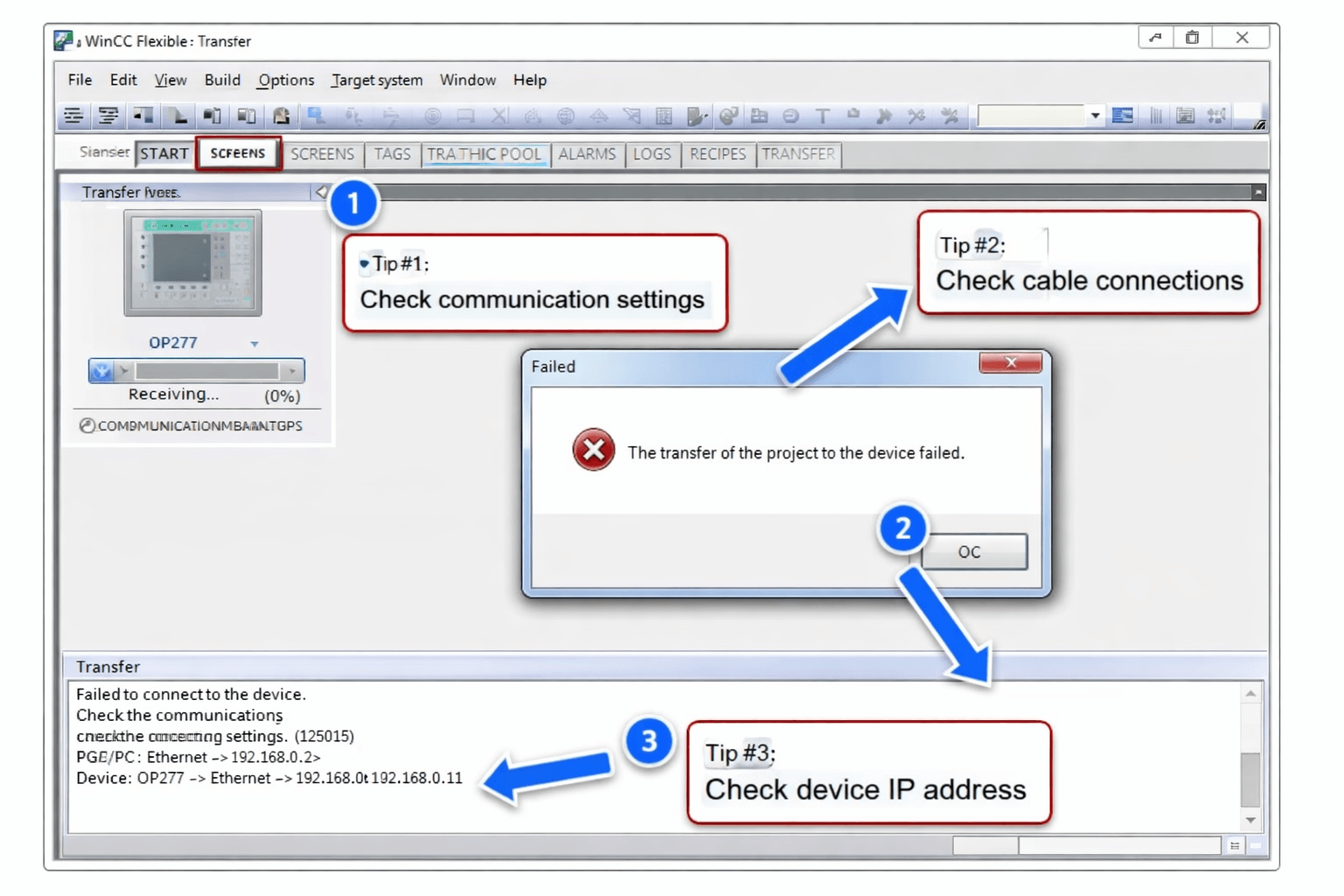
2. Siemens OP277 6 Transfer Failure (WinCC Flexible)
Symptoms
Project download or upload fails with messages such as “connection failed”, “transfer error”, “insufficient memory”, or the process stops midway.
Common Causes
Firmware or OS version mismatch between the panel and software, incorrect device type selection in the project, back-transfer option not enabled, network instability during transfer, or corrupted project files.
Troubleshooting Steps
- Perform a full OS update on the Siemens OP277 6 using WinCC Flexible or ProSave before attempting project transfer
- Double-check that the HMI device type is set exactly to OP277 6" in your WinCC Flexible project
- Enable the “Back-transfer” option in the project settings if you need to upload later
- Use a direct MPI or PROFIBUS connection instead of Ethernet for more stable transfers
- Clear the panel’s flash memory via factory reset if the transfer still fails (always make a backup first)
Pro Tip from Vicpas: Many transfer issues stem from outdated firmware. Our team can help source exact-match components if a deeper hardware refresh is required.
3. Siemens OP277 6 Date & Time Issues
Symptoms
The date and time reset to a default or old value after power loss, reboot, or every time the panel is restarted.
Common Causes
The OP277 6 relies on a software clock with limited battery backup, or the internal supercapacitor has failed over time.
Troubleshooting Steps
- Open the Control Panel on the HMI and manually set the correct date and time
- Configure the connected PLC to automatically synchronize the HMI clock using system tags or functions
- Check and replace the internal supercapacitor or battery if the time still does not retain after power cycle
- Enable “Retain” settings for clock data in your WinCC Flexible project configuration
Vicpas supplies reliable replacement supercapacitors and components to restore stable timekeeping in time-sensitive applications.
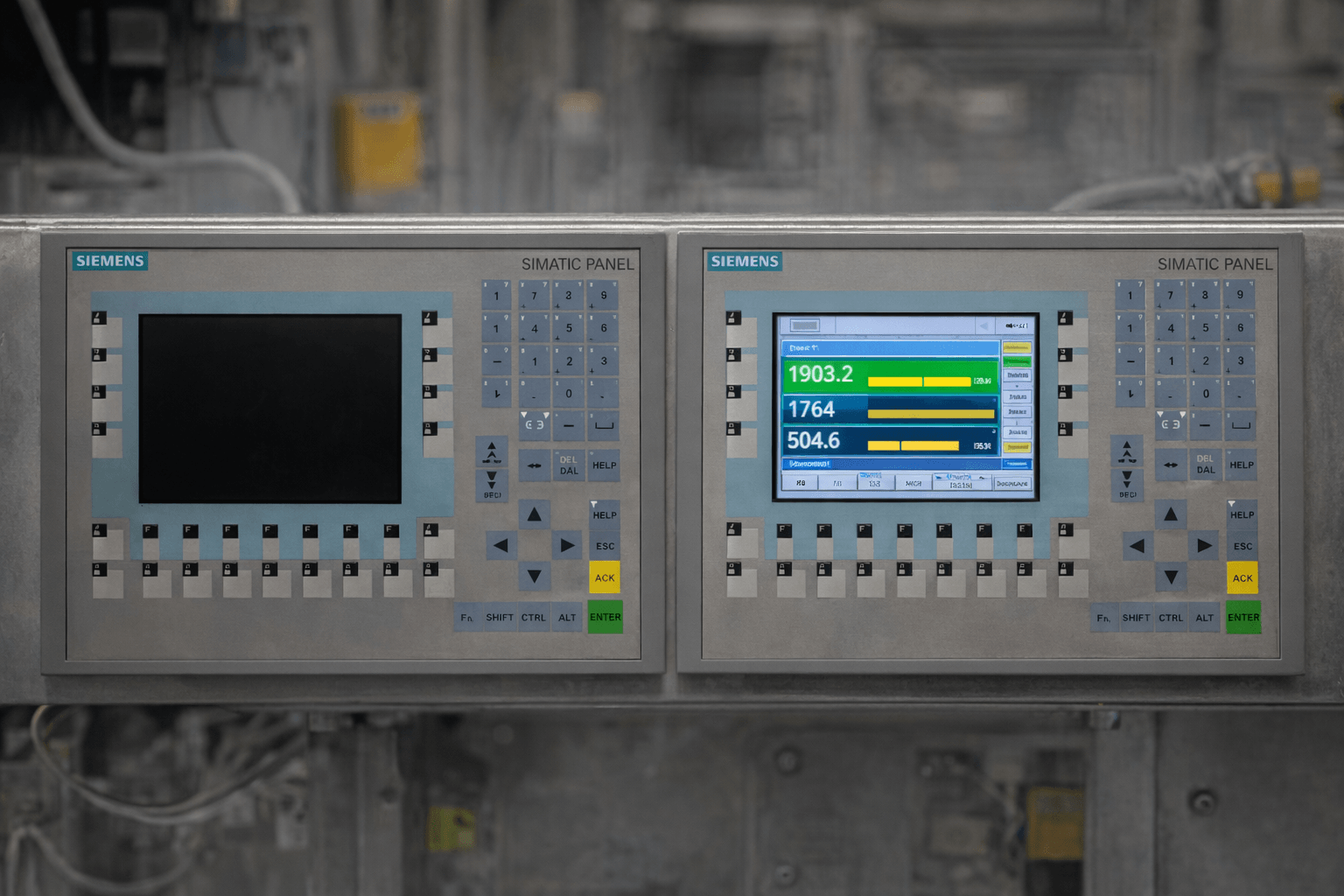
4. Siemens OP277 6 Screen Blank / Display Failure
Symptoms
The screen is completely blank, very dim, shows no backlight, or the display flickers even though the panel has power.
Common Causes
Unstable or insufficient 24V DC power supply, failed backlight inverter, aging or damaged display module, or internal connection issues.
Troubleshooting Steps
- Measure and confirm a stable 24V DC power supply to the panel
- Access the Control Panel and adjust brightness / display settings to maximum
- Power cycle the panel and perform a full hardware reset
- If the screen remains blank or dim, the display unit or backlight inverter likely needs replacement
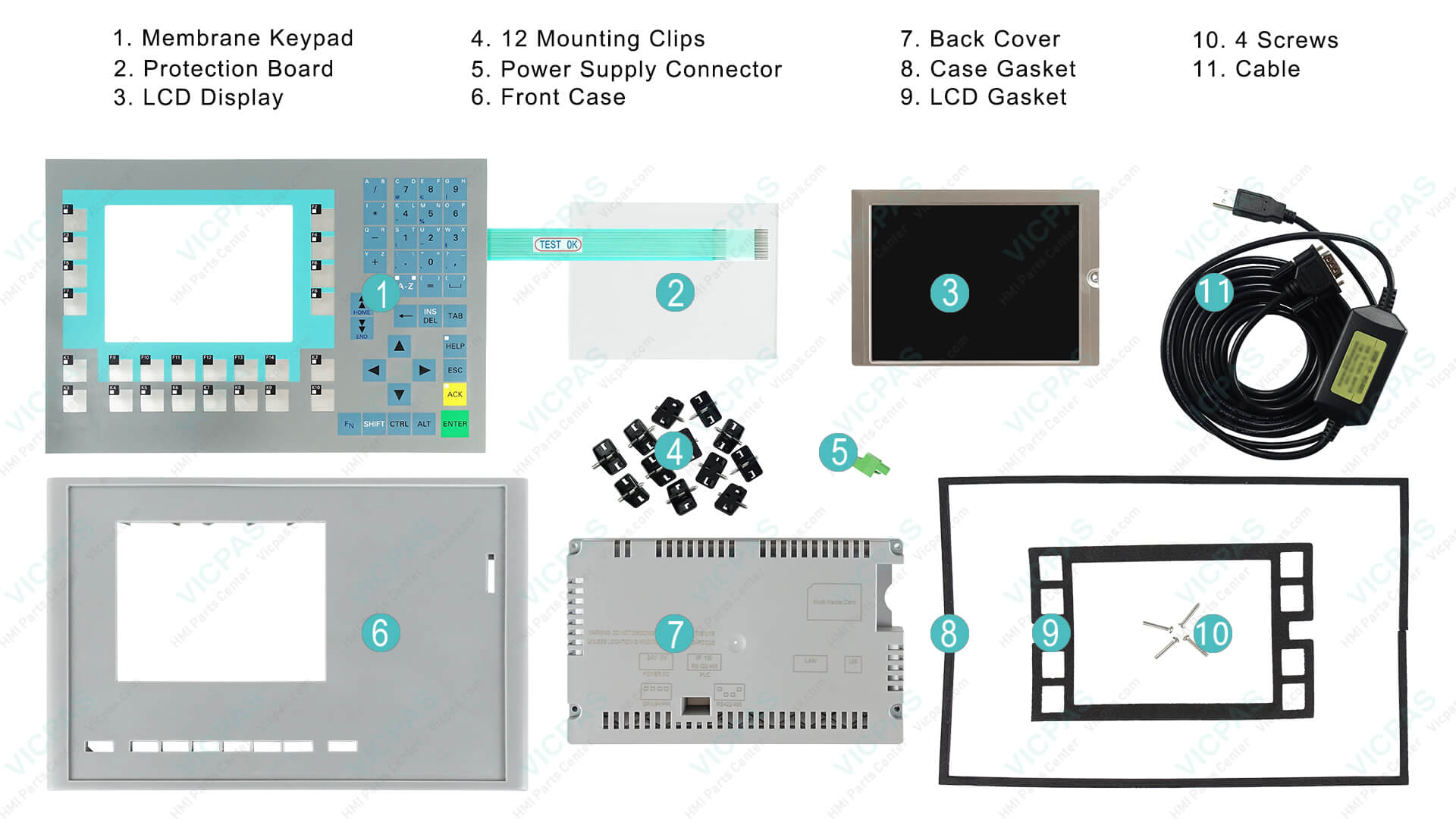
Vicpas Solution: We provide cost-effective full display and case replacements for the Siemens OP277 6, fully tested and ready to ship the same day.
5. Siemens OP277 6 Keypad Not Working
Symptoms
Some or all function keys, membrane buttons, or the numeric keypad do not respond, stick, or register wrong inputs.
Common Causes
Heavy wear and tear on the membrane keypad surface due to prolonged industrial use, dust, or chemical exposure.
Troubleshooting Steps
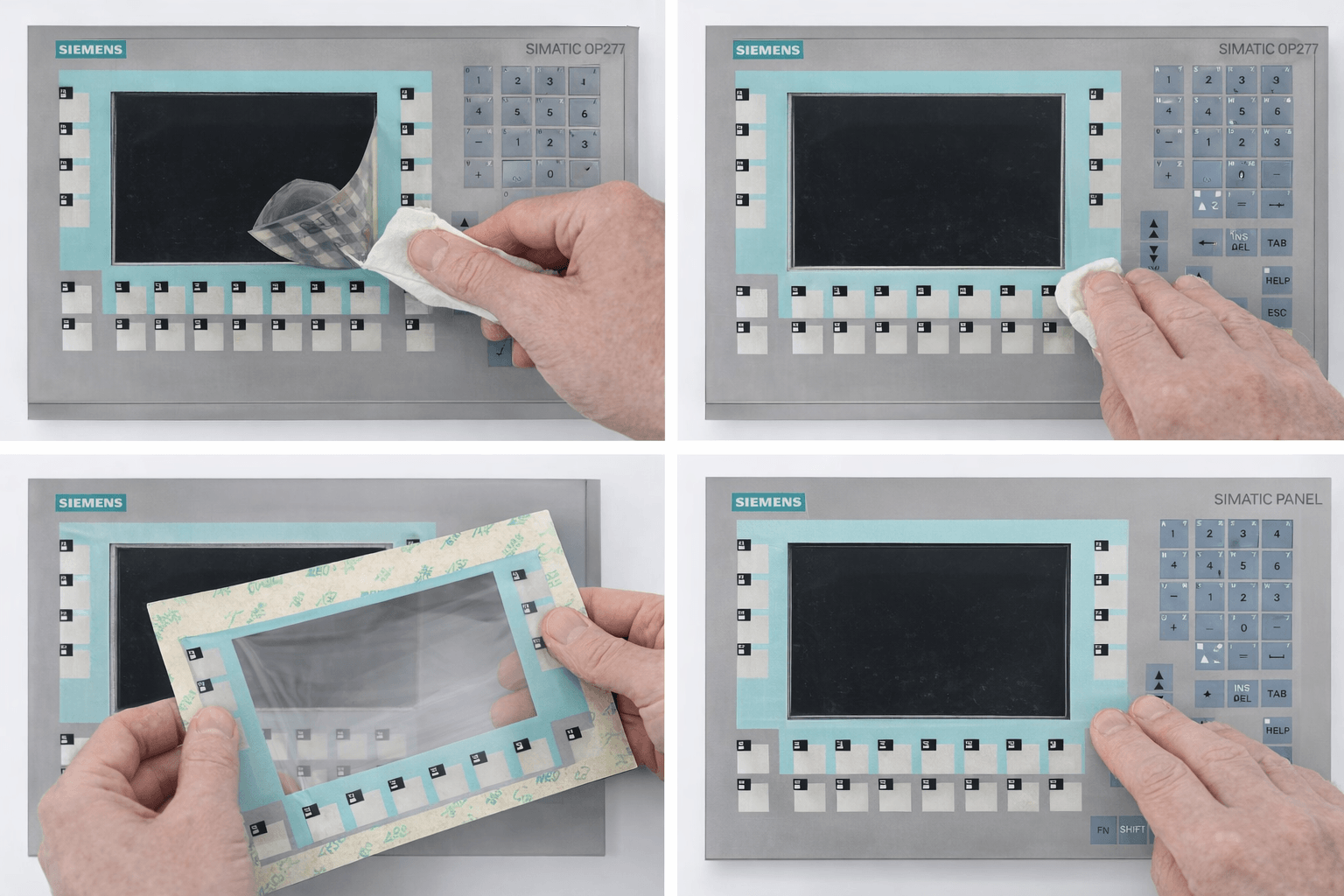
- Thoroughly clean the keypad surface with a suitable non-abrasive cleaner
- Test individual keys using the built-in HMI diagnostic or calibration tools
- Reload the project and attempt to recalibrate the touch/key response
- If keys still fail, the membrane keypad has reached end of life and needs replacement
Best Fix: Replace the membrane keypad entirely. Vicpas offers direct replacements for multiple Siemens OP277 6 part numbers (e.g., 6AV6643-0BA01-1AX1, 6AV6643-7BA00-0CJ1, and more) — factory-tested, 6-month warranty, and at competitive prices. Browse our OP277 6 keypad range here
6. Siemens OP277 6 OS Update / Firmware Issues
Symptoms
Errors appear during OS or firmware update, the panel becomes unresponsive after update, or runtime crashes occur.
Common Causes
Incompatible OS version with the current WinCC Flexible software, corrupted project data, or interrupted update process.
Troubleshooting Steps
- Use the exact compatible version of WinCC Flexible or ProSave for the OS update
- Always create a full backup of your current project and settings before starting any update
- Perform the update using a stable direct connection (MPI/PROFIBUS preferred)
- Reset the panel to factory settings if it becomes unresponsive after the attempt
- Review system logs and alarm buffers for detailed error codes
The Vicpas technical team can assist with firmware-compatible part recommendations when needed.
7. Additional Common Siemens OP277 6 Issues (Communication, Download/Upload, Alarms)
Communication & Runtime Issues
Intermittent runtime errors or loss of communication during operation, often linked to incorrect driver or tag configuration.
Download/Upload Problems
Failures when downloading or uploading projects due to memory limits or incorrect transfer parameters.
Alarm & Runtime Errors
Alarms not displaying correctly, buffer overflow, or unexpected runtime behavior caused by project logic or configuration issues.
In all cases, a systematic check of connections, firmware, and hardware is key.
Conclusion: Keep Your Siemens OP277 6 Running at Peak Performance
The Siemens OP277 6 is built for reliability, but proactive maintenance and quality replacement parts prevent costly downtime. By following this guide, most issues can be resolved quickly in-house.
When hardware replacement is the most efficient solution, trust Vicpas — your partner with over 20 years of HMI expertise, 80,000+ parts in stock, worldwide same-day shipping options, and a commitment to 100% customer satisfaction.
Contact our experts at sales@vicpas.com or +86-13922741901 for personalized advice on your Siemens OP277 6. Visit our company page to learn more about our story.
Need parts right now? Shop Siemens OP277 6 membrane keypads and more: click
This guide was prepared by the Vicpas Automation Team to share practical, experience-based knowledge and help industrial professionals maintain their Siemens HMI systems effectively.
(Last updated: April 2026. Always refer to your Siemens OP277 6 manual and follow proper safety procedures.)
References
- Siemens Forum – OP277 Connection Problems
- Siemens Forum – OP277 Transfer Failure (WinCC Flexible)
- Siemens Forum – OP277 Date & Time Issue
- Siemens Forum – OP277 Screen Blank / Display Failure
- Siemens Forum – OP277 Keypad Not Working
- Siemens Forum – OP277 OS Update / Firmware Issues
- PLCtalk.net – OP277 Communication & Runtime Issues
- MrPLC Forum – OP277 Download / Upload Problems
- Siemens Support (FAQ) – OP277 Troubleshooting & Diagnostics
- PLCforum – OP277 Alarm & Runtime Errors
 Fast Quote
 Fast Quote
 Worldwide Shipping
 12 Months Warranty
 Customize Service
- Phone
- *Title
- *Content
