
Omron NS5 Troubleshooting Guide: Fix White Screen, Connecting Status & Communication Errors
Omron NS5 Troubleshooting Guide: Fix White Screen, Connecting Status & Communication Errors
Table of Contents
The Omron NS5 is a widely used 5.7-inch programmable terminal (HMI) in the NS Series, valued for its reliability in industrial automation. However, technicians frequently encounter three related issues: a white/blank screen when accessing PLC memory (CIP, DM, or similar addresses), the HMI stuck on “Connecting…” status, and recurring communication errors or protocol mismatches after downloads.
This practical guide synthesizes verified solutions from field reports, official Omron FAQs, setup manuals, and community troubleshooting threads. It focuses on the most common root causes—configuration mismatches between the NS5 (via CX-Designer) and Omron PLCs (CJ1M, CP1L, etc.)—and provides step-by-step fixes. When software configuration alone is insufficient (for example, due to damaged touch glass, failed backlight, or worn membrane), hardware replacement becomes necessary. In those cases, specialists such as VICPAS (Guangzhou Vicpas Touch Technology Co., Ltd.) supply genuine-compatible NS5 touchscreens, overlays, LCD displays, protective films, and cases with a 365-day warranty and global shipping.
Common Symptoms and Root Causes
| Symptom | Typical Root Cause | Quick Check |
|---|---|---|
| White/blank screen after downloading project that uses PLC memory (CIP/DM) | System Bits ($SB) and System Words ($SW) not allocated in PLC memory via System Settings → Initial tab | Open CX-Designer → System Settings → Initial |
| Persistent “Connecting…” on black or solid screen | Serial A cable still connected during download; PLC serial port left in default Host Link mode instead of 1:N NT Link; mismatched baud rate or unit number | Disconnect Serial A before transfer; verify PLC Setup |
| Protocol reverts or communication timeout after power cycle | PLC Host Link / Peripheral port not set to 1:N NT Link; DIP switches on CP1L left in peripheral-bus mode; cable pinout or loose connector | Check CX-Programmer PLC Settings and physical DIP switches |
| Blank screen with specific LED behavior (orange/green/red) | Memory-card recognition failure, corrupted system program, or hardware fault | Refer to Omron NS Setup Manual troubleshooting section |
These issues appear consistently across serial (RS-232C) and, less frequently, Ethernet (FINS) connections.
Step-by-Step Resolution
1. Fix White Screen When Using PLC Memory Addresses
- Open the NS5 project in CX-Designer.
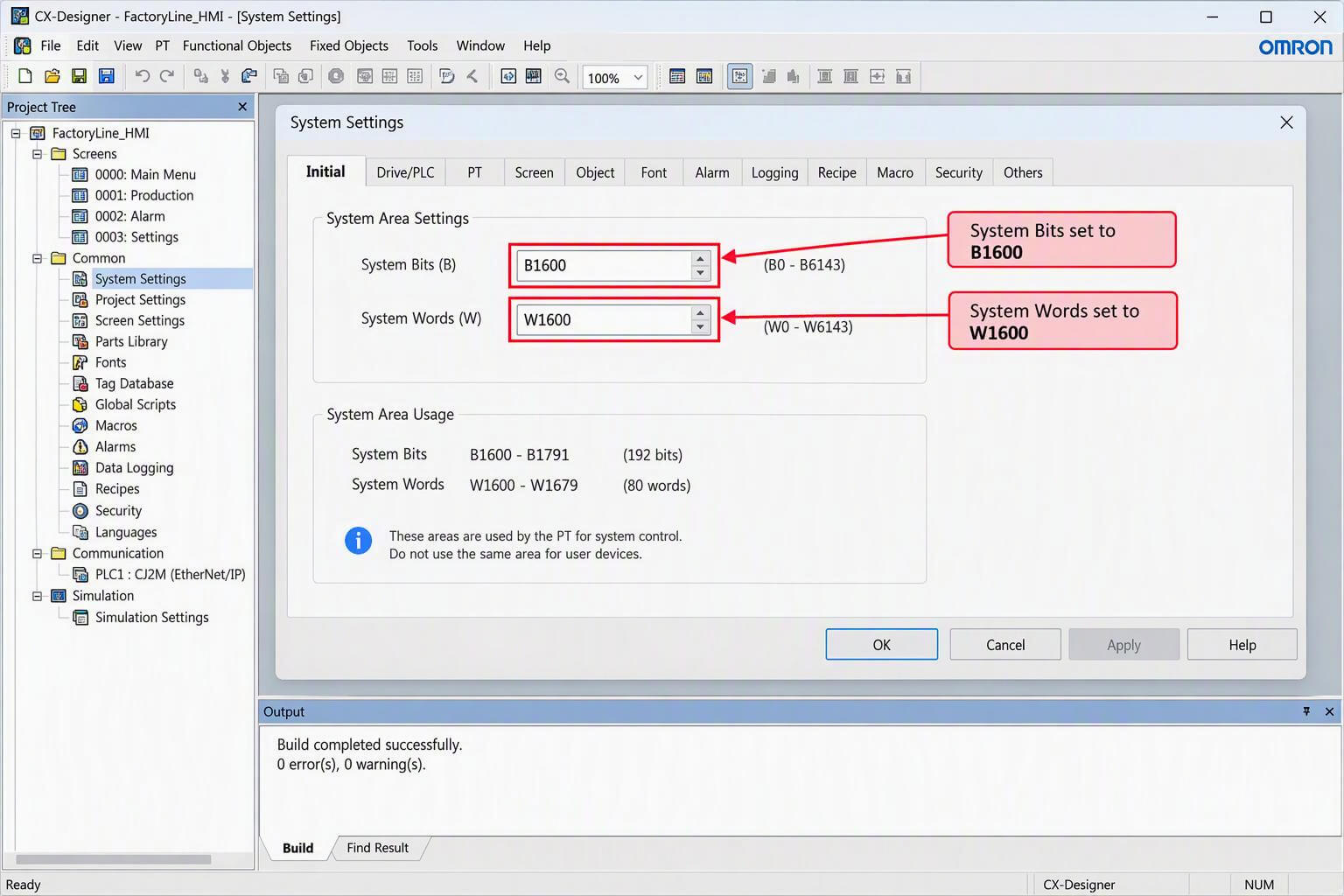
- Go to System Settings → Initial tab.
- Set:
- System Bits: B1600 (or CIO0000)
- System Words: W1600 (or CIO0000)
- The first System Word holds the current screen number (BCD). Writing a valid screen number to this address changes the displayed page.
- Re-download the project after the change.
2. Resolve Persistent “Connecting…” Status
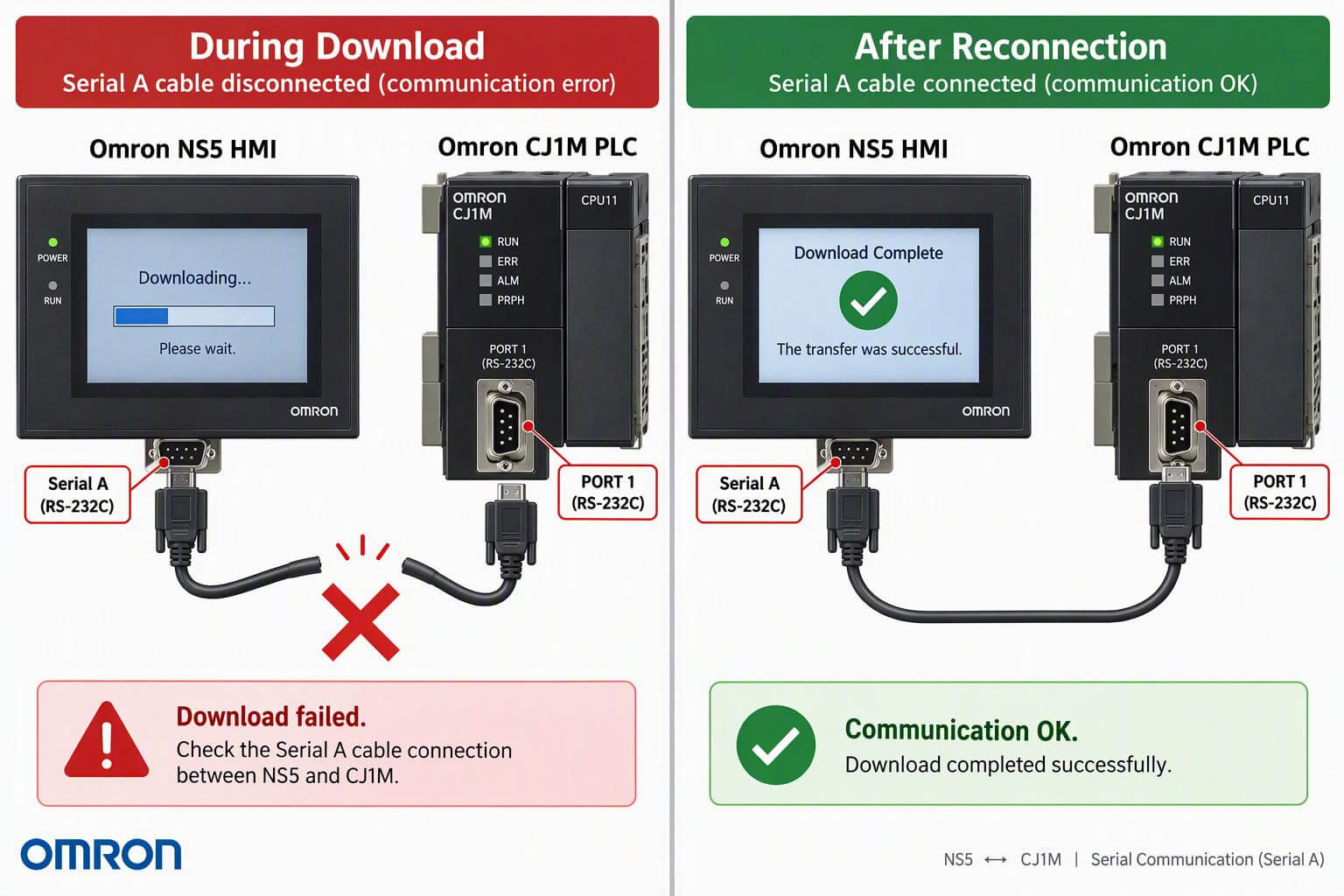
Critical rule: The Serial A port must not be connected to the PLC while downloading the project.
- Power down or disconnect the Serial A cable between the NS5 and PLC.
- Download the project via USB, Ethernet, or Memory Card.
- After the NS5 restarts, reconnect the Serial A cable.
- Communication should establish automatically if protocols match.
On the PLC side (example: CJ1M-CPU13 or similar):
- In CX-Programmer → PLC Settings:
- Host Link Port: Mode = 1:N NT Link, Baud Rate = 9600 (Standard)
- Peripheral Port (if used): same settings
- On the NS5: System Settings → Comm tab → Comm Speed = Standard (9600).
- For CP1L models, verify DIP switches SW4 and SW5 are OFF (Host Link / PC mode). Leaving them ON forces peripheral-bus mode and blocks HMI communication.
3. Additional Communication Checks
- Confirm cable type and pinout (Omron-specific RS-232 cables such as XW2Z series; avoid standard PC null-modem cables).
- Power-cycle both the HMI and PLC after any PLC Setup change.
- Access the NS5 System Menu (touch opposite corners of the screen) to verify live communication settings.
- For Ethernet/FINS connections, ensure matching Network Number and Node Number, and that the PLC local network is set to 1 via CX-Integrator.
Official Omron guidance confirms that “Connecting…” simply means the PT has not yet established a valid link with the host; matching serial parameters and proper wiring resolve the majority of cases.
When Configuration Is Not Enough – Hardware Considerations
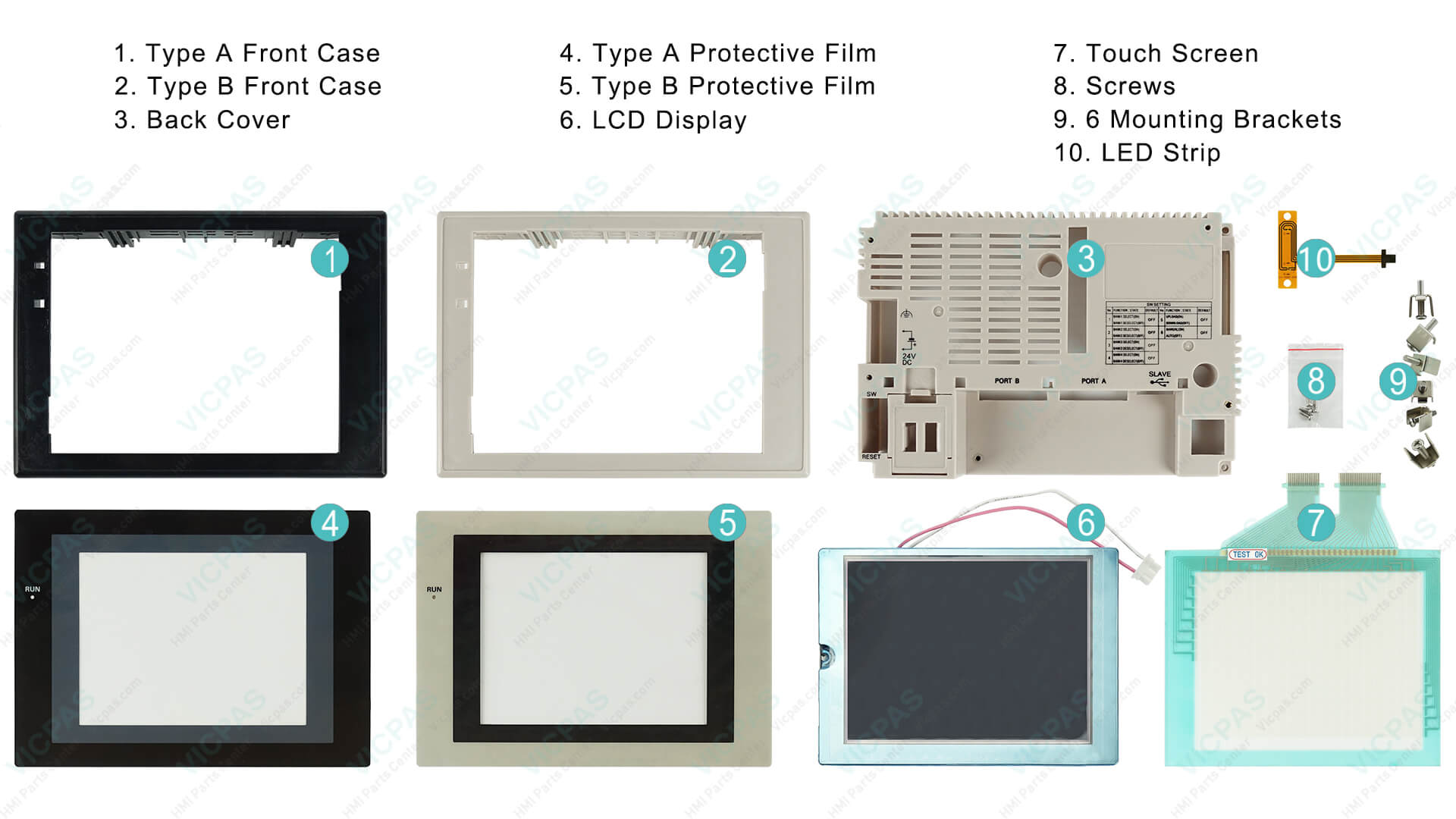
After correct settings, some NS5 units still show blank screens due to failed backlight, cracked resistive touch glass, or corrupted CF cards. The Omron NS Setup Manual lists LED indicator combinations that point to hardware or system-program issues. In these situations, replacement of the touchscreen, overlay, LCD, or complete repair kit restores operation without replacing the entire HMI.
VICPAS specializes in exactly these components for the Omron NS Series (including NS5-SQ01-V1, NS5-SQ10-V2, NS5-MQ11B-V2 and related models). With more than 20 years of experience in HMI operator-panel parts, VICPAS maintains a large inventory of new touchscreens, membrane keypads, protective films, LCD displays, and plastic cases. Key advantages include:
- 365-day (1-year) VICPAS warranty
- Urgent worldwide shipping (DHL, UPS, FedEx, TNT)
- No minimum order quantity – single-piece customization available
- Fast production and testing facilities
- Support for both current and hard-to-find/obsolete NS5 variants
Browse the full range of Omron NS5 compatible parts at: NS5. Company overview and service details are available at here.
Verified Working Configuration Example
| Device | Parameter | Recommended Value |
|---|---|---|
| NS5 HMI | Comm Speed | Standard (9600) |
| NS5 HMI | System Bits | B1600 or CIO0000 |
| NS5 HMI | System Words | W1600 or CIO0000 |
| CJ1M / CP1L PLC | Host Link / Serial | 1:N NT Link, 9600 baud |
| CP1L DIP Switches | SW4 / SW5 | OFF |
Summary and Best Practices
Most Omron NS5 white-screen and “Connecting…” problems are resolved by three actions: (1) properly allocate System Bits and System Words in CX-Designer, (2) disconnect Serial A during project download, and (3) set the PLC serial ports to 1:N NT Link at matching baud rates. Always power-cycle after PLC Setup changes and verify DIP switches on CP1L units.
If the HMI still fails after these steps, inspect for physical damage or system-program corruption and consider a quality replacement touchscreen or display kit. VICPAS provides tested, warrantied NS5 parts backed by decades of HMI specialization, helping maintenance teams minimize downtime.
For quotation or technical assistance on Omron NS5 touchscreens, overlays, or complete repair kits, contact VICPAS at sales@vicpas.com or visit the product search page linked above. Proper configuration plus reliable spare parts keeps your NS5 systems running reliably for years.
References
- Omron NS5 Touchscreen Troubleshooting: White Screen, CIP Communication and Connecting Status Issues – Industrial Monitor Direct
- Omron NS5 Touchscreen – PLCtalk Forum Thread
- 画面がConnecting(コネクティング)と表示され、接続できない。 – Omron Official FAQ
- FAQ02515 – Connecting… appears on black screen (Omron Global)
- NSでRS232C/RS422接続の場合、真っ黒画面の右下に「Connecting...」 – Omron Japan FAQ
- 触摸屏和PLC上电连接后程序画面不显示,如何处理? – Omron China FAQ
- OMRON CP1L-NS5 HMI Output and Communication Troubleshooting – Industrial Monitor Direct
- NS Series Error Messages PDF – infoPLC
- NS Series Setup Manual (V083-E1-25) – MyOmron
- NS5 HMI Connection Problem – MrPLC Forum
- OMRON CP1L and NS5-SQ10-V2 – PLCtalk Forum
- VICPAS HMI Parts Center Brand Story
- VICPAS Omron NS5 Series Touchscreen & Parts Search
 Fast Quote
 Fast Quote
 Worldwide Shipping
 12 Months Warranty
 Customize Service
- Phone
- *Title
- *Content
