
Allen-Bradley PanelView Plus 1250 Troubleshooting Guide: Common Problems and Solutions
Allen-Bradley PanelView Plus 1250 Troubleshooting Guide: Common Problems and Solutions
Table of Contents
- 1. Understanding Status Indicators and Basic Startup Checks
- 2. Boot Failures and CompactFlash (CF) Card Issues
- 3. DeviceNet or EtherNet/IP Communication Problems After Firmware Upgrade
- 4. Screen Values Freeze or Fail to Update
- 5. Touchscreen Inaccuracy, Dead Spots, or Non-Response
- 6. Fatal Errors and Hardware Component Failures
- Why Choose Quality Replacement Parts from VICPAS
- Final Recommendations
- References
The Allen Bradley PanelView Plus 1250 remains one of the most widely deployed operator interface terminals in industrial automation. With its 12.1-inch color TFT display, support for keypad, touch, or combination input, and robust FactoryTalk View ME runtime, it continues to control processes in manufacturing, water treatment, packaging, and OEM equipment worldwide.
However, like any HMI that has been in continuous service for years, the PanelView Plus 1250 can develop issues ranging from simple calibration drift to more complex firmware, CompactFlash, or communication failures. This comprehensive troubleshooting guide draws on official Rockwell Automation documentation, real-world forum reports from PLCTalk and MrPLC, and practical field experience to help maintenance technicians and engineers quickly diagnose and resolve the most common problems.
Whether you are dealing with a blank screen after power interruption, frozen tag values, DeviceNet communication loss after a firmware upgrade, or a fatal hardware error, the structured steps below will guide you toward a reliable solution. When hardware replacement becomes necessary, high-quality touchscreens, membrane keypads, LCD displays, and protective overlays are readily available from specialized HMI parts suppliers such as VICPAS.
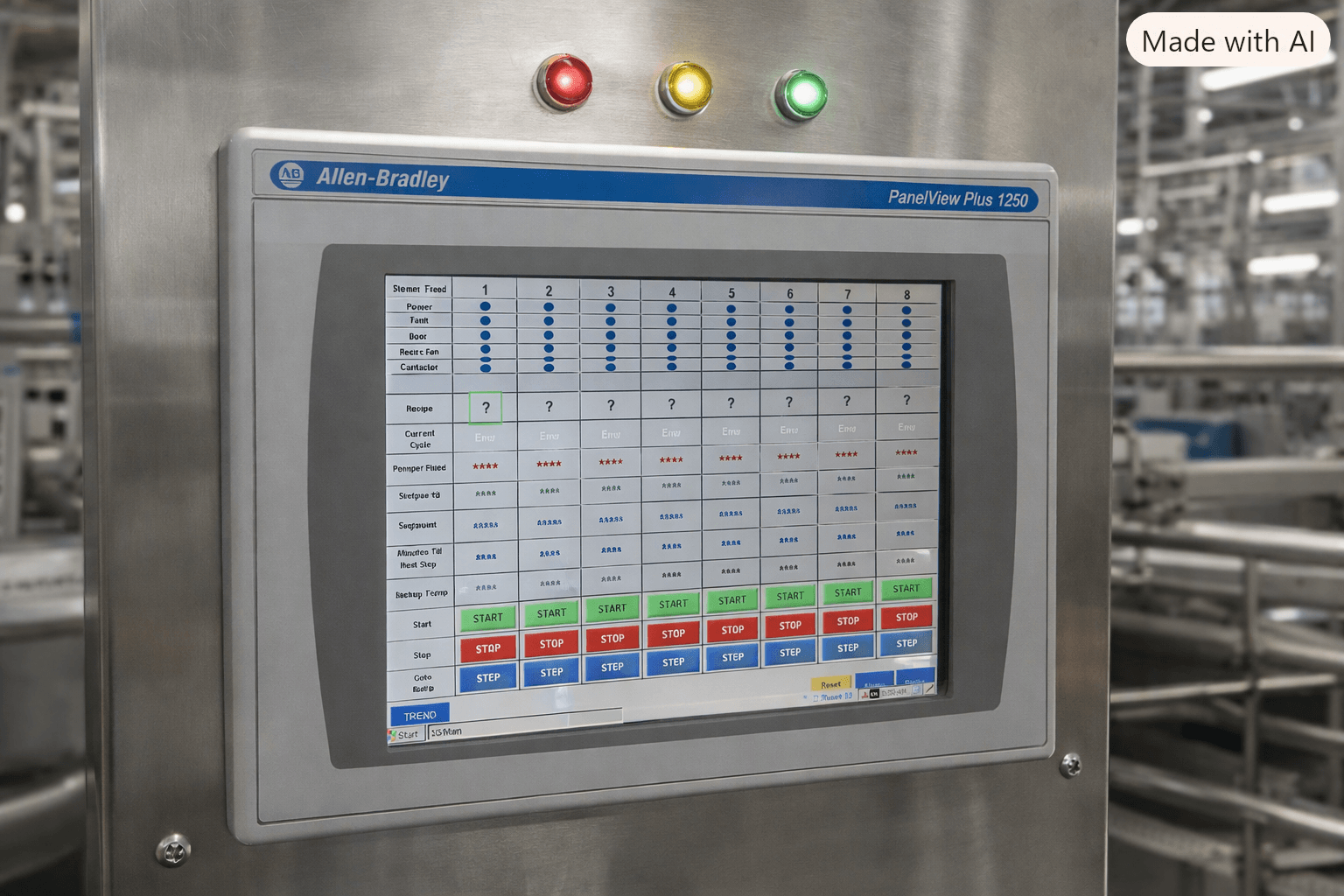
1. Understanding Status Indicators and Basic Startup Checks
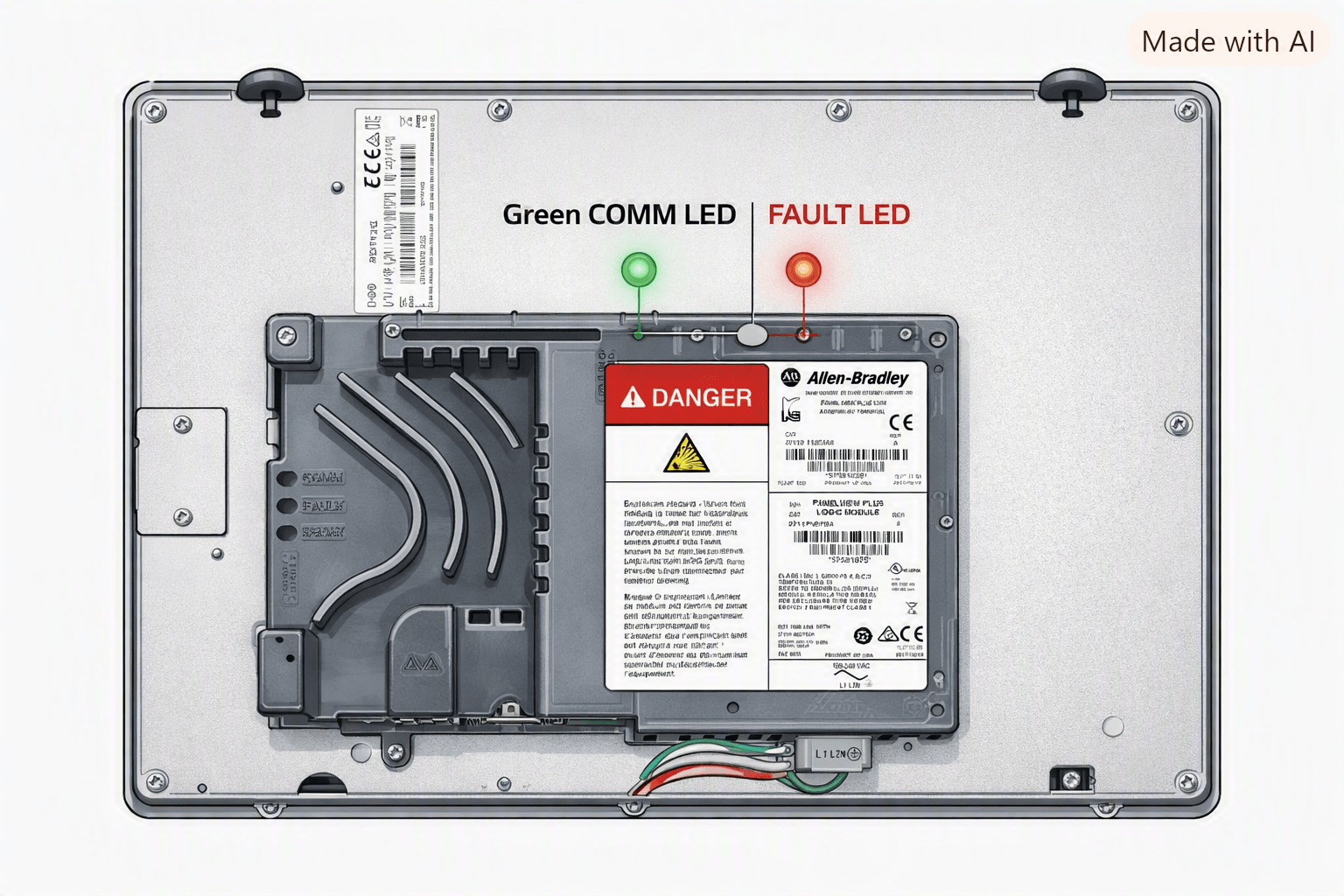
Before diving into advanced troubleshooting, always begin with the two status LEDs located on the logic module:
- COMM (green) – indicates communication activity
- FAULT (red) – indicates hardware or firmware faults
Normal startup behavior
At power-up the FAULT LED should remain off (or flash only briefly) while the COMM LED stays on.
| FAULT (Red) | COMM (Green) | Meaning | Recommended Action |
|---|---|---|---|
| Blinking | Off | Recoverable firmware error (last download failed) | Reload firmware with Firmware Upgrade Wizard |
| On | Off | Fatal hardware error | Replace logic module |
| Off | Off | No power or power supply/logic module failure | Verify 24 V DC supply and cable |
Always confirm that the terminal receives adequate power (typically 18–32 V DC). An under-powered unit produces unpredictable behavior. Also check battery voltage in Terminal Settings > System Information; replace the battery if it falls below 2.75 V DC.
2. Boot Failures and CompactFlash (CF) Card Issues
A frequent complaint is that the terminal powers up, progresses through system checks (often stopping around “29 Checking System”), then goes black or boots only to the Windows CE desktop instead of loading the .mer application.
Common causes
- Corrupted CF card partitions (especially after unexpected power loss or generator transfer)
- Series mismatch between logic module and CF card image
- Damaged or failing CF card
Step-by-step recovery
- Attempt Safe Mode by holding the Default and Reset buttons during power-up.
- Cross-test the CF card in a known-good PanelView Plus of the same series.
- If the card is at fault, replace it with a properly imaged industrial-grade CompactFlash card (Rockwell pre-loaded or restored via official recovery procedures).
- Re-transfer the application using FactoryTalk View ME Transfer Utility.
When the display or touch digitizer itself has failed, replacement touchscreens and LCD modules are the most cost-effective solution. VICPAS maintains a large inventory of exact-fit parts for the PanelView Plus 1250 series (including 2711P-B12C and 2711P-K12C catalog numbers), all supplied with a 12-month warranty and ready for urgent worldwide shipping.
3. DeviceNet or EtherNet/IP Communication Problems After Firmware Upgrade
A classic scenario reported on PLCTalk: after a repaired terminal receives a firmware upgrade (for example from 5.00.04.55 to 5.10.14.09), DeviceNet tags begin showing “ERROR” even though both MS and NS LEDs are solid green and the identical .mer file worked on the old unit.
Root causes
- EDS file or I/O data structure changes between firmware revisions
- Corrupted onboard RSLinx Enterprise driver
- Need to re-commission the network after the upgrade
Recommended procedure
- Verify DeviceNet LEDs (MS and NS both solid green).
- In FactoryTalk View ME, reload the .mer file and ensure “Replace Communications” is checked.
- On the terminal, delete the existing DeviceNet configuration under Terminal Settings > Communications, reboot, and re-enter node address and baud rate.
- For EtherNet/IP loss (no response to ping or BootP), try firmware recovery via CompactFlash or serial DF1 reset.
4. Screen Values Freeze or Fail to Update
On terminals running older firmware (3.1 or 3.2), process values may appear frozen. Navigating away and returning to the screen temporarily refreshes the data.
This is a known runtime defect. The permanent fix is to upgrade the firmware to version 4.x or later (preferably a current supported release). Always back up the existing application before performing the upgrade via USB, CompactFlash, or Ethernet.
5. Touchscreen Inaccuracy, Dead Spots, or Non-Response
Resistive touchscreens on the PanelView Plus 1250 can drift over time or become unresponsive if calibrated with a stylus instead of a finger (or vice versa).
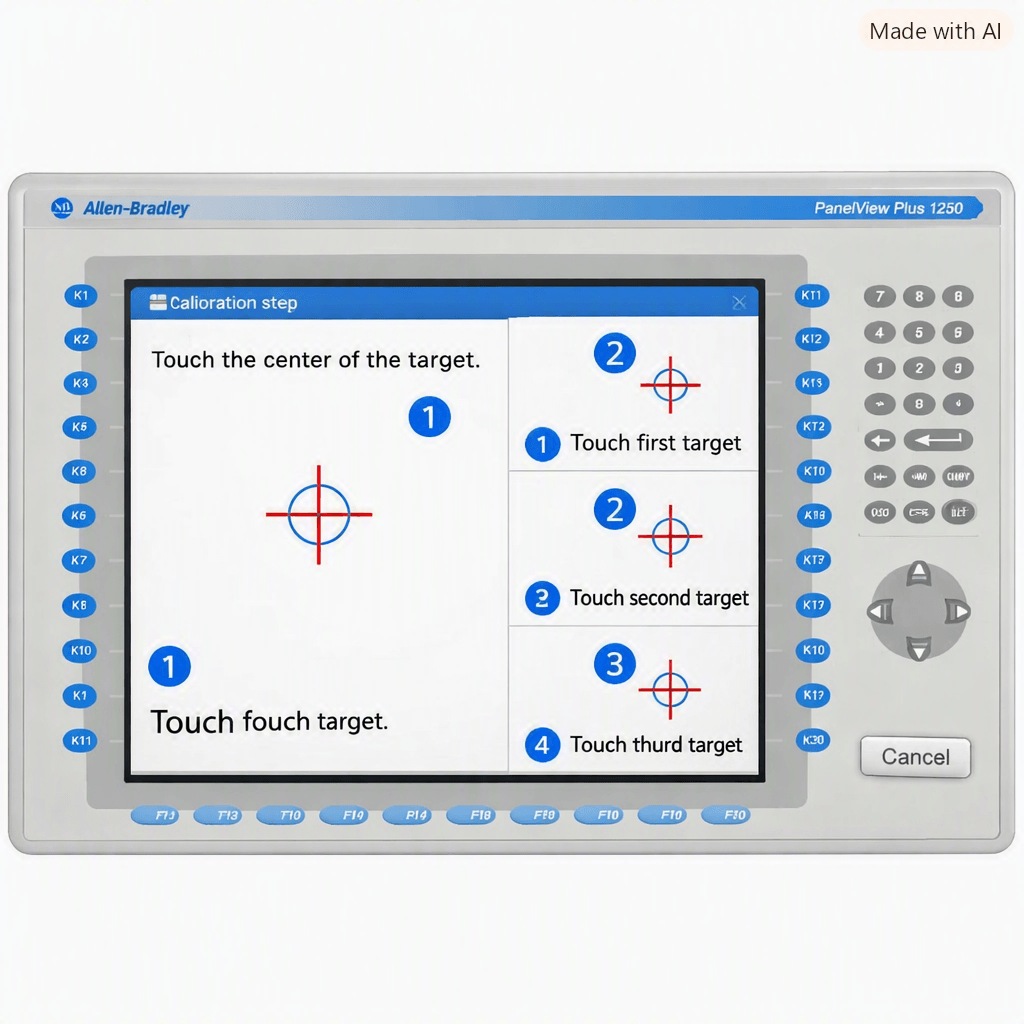
Calibration steps
- Enter Configuration Mode (hold upper corners or use the white square during boot, depending on firmware).
- Navigate to Terminal Settings > Input Devices > Touch Screen > Calibration.
- Touch the center of each target accurately with the intended input method.
- Save the new calibration data.
If calibration fails or dead spots remain, the touch digitizer glass or entire display module usually needs replacement. VICPAS supplies high-quality replacement touchscreens, membrane keypads, and protective overlays specifically engineered for the Allen Bradley PanelView Plus 1250, tested for proper actuation force and long-term reliability.
6. Fatal Errors and Hardware Component Failures
Fatal errors that appear immediately on power-up or after a period of normal operation often point to:
- Stuck key or stuck touch (Error 31 / 31.5)
- Battery test failure (Error 32)
- RAM, CRC, or watchdog failures
- Display module EEPROM corruption
Consult the system error message table in the official user manual (Publication 2711P-UM001). In many cases the practical solution is replacement of the display module, logic module, or battery.
For membrane keypads that have worn out or lost tactile response, and for cracked or faded LCD assemblies, specialized suppliers such as VICPAS offer ready-to-install replacements that restore original functionality without the long lead times of full terminal replacement.
Why Choose Quality Replacement Parts from VICPAS
When troubleshooting identifies a failed touchscreen, keypad, display, or housing, downtime cost quickly exceeds the price of a quality spare part. VICPAS (Guangzhou Vicpas Touch Technology Co., Ltd.) has specialized in HMI operator panel parts since 2004, serving thousands of industrial customers across more than 110 countries.
Their PanelView Plus 1250 product range includes:
- Exact-fit resistive touchscreen digitizers
- Membrane keypad switches
- LCD display modules
- Protective film overlays and plastic cases
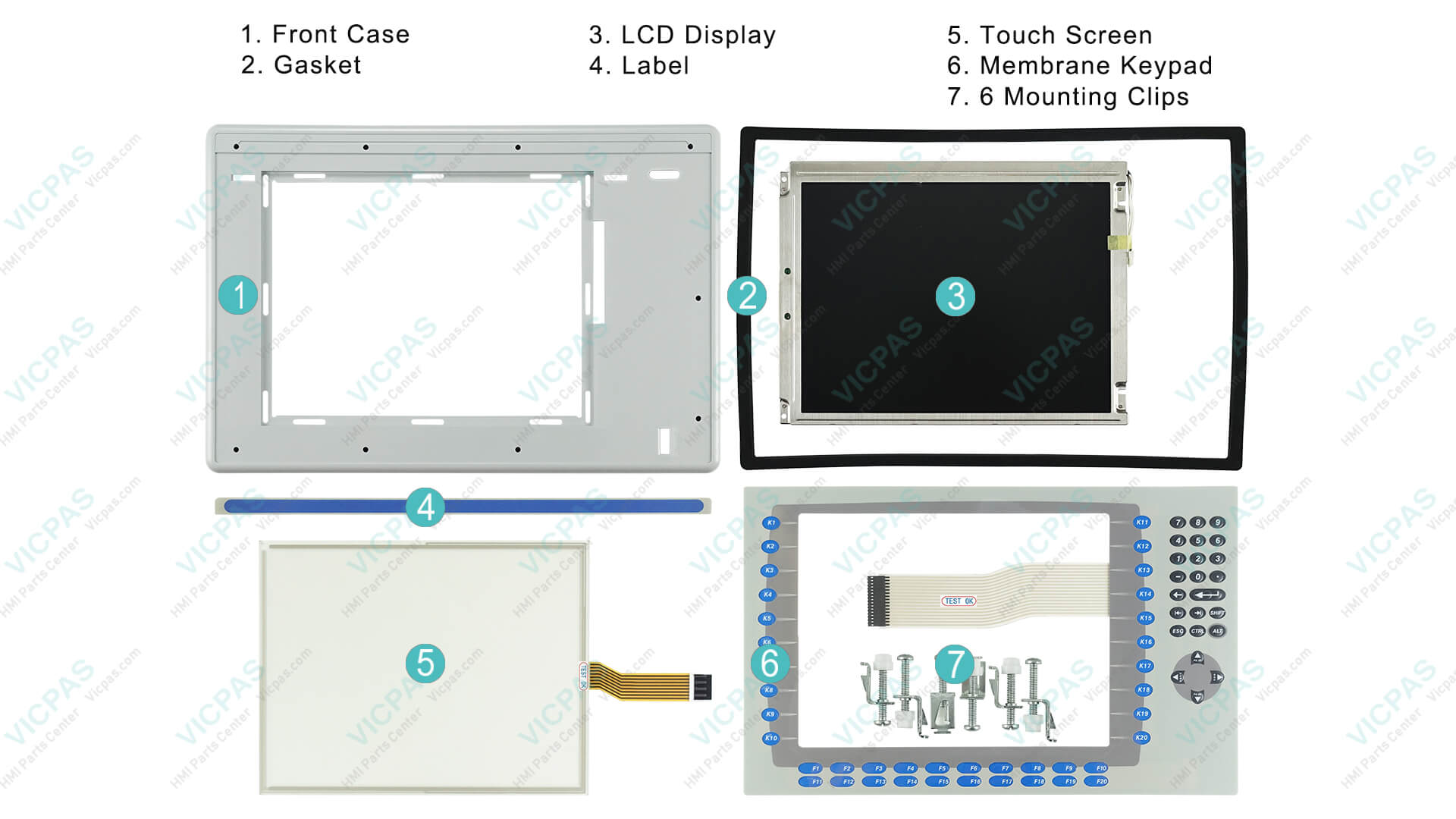
Key advantages include a large ready inventory, 12-month VICPAS warranty, same-day shipping options, no minimum order quantity, and the ability to customize hard-to-find or obsolete items. All parts are independently sourced and fully tested.
Explore the complete range of Allen Bradley PanelView Plus 1250 replacement parts here:
https://www.vicpas.com/products2110310/Panelview-Plus-1250.htm
For urgent requirements or technical guidance on selecting the correct catalog number, contact the VICPAS team at sales@vicpas.com or visit https://www.vicpas.com/comm01.htm.
Final Recommendations
Most PanelView Plus 1250 problems can be resolved systematically by checking power and LEDs first, then isolating firmware, CF card, communication, or hardware components. Keep official Rockwell manuals (2711P-IN001 and 2711P-UM001) readily available, maintain current firmware, and stock critical spares such as touchscreens and keypads.
By combining official documentation, real-world community experience, and reliable replacement parts from experienced suppliers like VICPAS, you can minimize downtime and keep your Allen Bradley PanelView Plus 1250 terminals performing reliably for years to come.
If you encounter a specific error code or symptom not covered above, feel free to reach out — the combination of structured troubleshooting and ready access to quality HMI components is the fastest path back to production.
References
- DO Supply – PanelView Plus 1250 Product & Troubleshooting Information
- Rockwell Automation – PanelView Plus Installation Instructions (2711P-IN001)
- Rockwell Automation – PanelView Plus User Manual (2711P-UM001)
- PLCTalk Forum – PanelView Plus 1250 Communication Problem Discussion
- Industrial Monitor Direct – DeviceNet Communication Fix After Firmware Upgrade
- Industrial Monitor Direct – CF Card Corruption After Power Interruption
- Industrial Monitor Direct – PanelView Plus Screen Not Updating / Frozen Values
- PLCTalk Forum – PanelView Plus Boot-Up Issue Discussion
- MrPLC Forum – Fatal Error on PanelView Plus 1250
- Industrial Monitor Direct – Boot Failure and Firmware Restoration Guide
- VICPAS – PanelView Plus 1250 Touchscreen, Keypad & Display Replacement Parts
- VICPAS – Company Profile & HMI Parts Service
 Fast Quote
 Fast Quote
 Worldwide Shipping
 12 Months Warranty
 Customize Service
- Phone
- *Title
- *Content
