
Troubleshooting Allen-Bradley PanelView Plus 1500 Black Screen / Won’t Light Up
Troubleshooting Allen-Bradley PanelView Plus 1500 Black Screen / Won’t Light Up
Table of Contents
The Allen-Bradley PanelView Plus 1500 is a workhorse 15-inch HMI terminal widely used in industrial automation. When it suddenly shows a completely black screen or refuses to light up, production can stop. This guide provides a practical, step-by-step troubleshooting process based on real field cases, Rockwell Automation documentation, and technician experience so you can diagnose the issue quickly and decide whether a simple fix or parts replacement is needed.
Common Symptoms of a PanelView Plus 1500 Black Screen
Operators and technicians typically report one or more of the following:
- Screen remains completely black even though control power (usually 120 V AC) is present
- Touchscreen does not respond
- Ethernet port LEDs stay dark
- Occasional recovery after repeated screen taps (early sign of backlight failure) that later becomes permanent
- Unit worked the previous day and then failed without obvious damage
These symptoms point to power problems, backlight failure, internal power-supply issues, or (less commonly) firmware/display-module faults.
Safety First
Before any work:
- Lock out and tag out the power source.
- Verify proper grounding. Floating or missing grounds are a frequent cause of intermittent or total failure and can create hazardous voltages.
- Never rely solely on the enclosure frame for grounding on safety-critical equipment.
Step-by-Step Troubleshooting Procedure
1. Verify Power and Grounding (Most Common Root Cause)
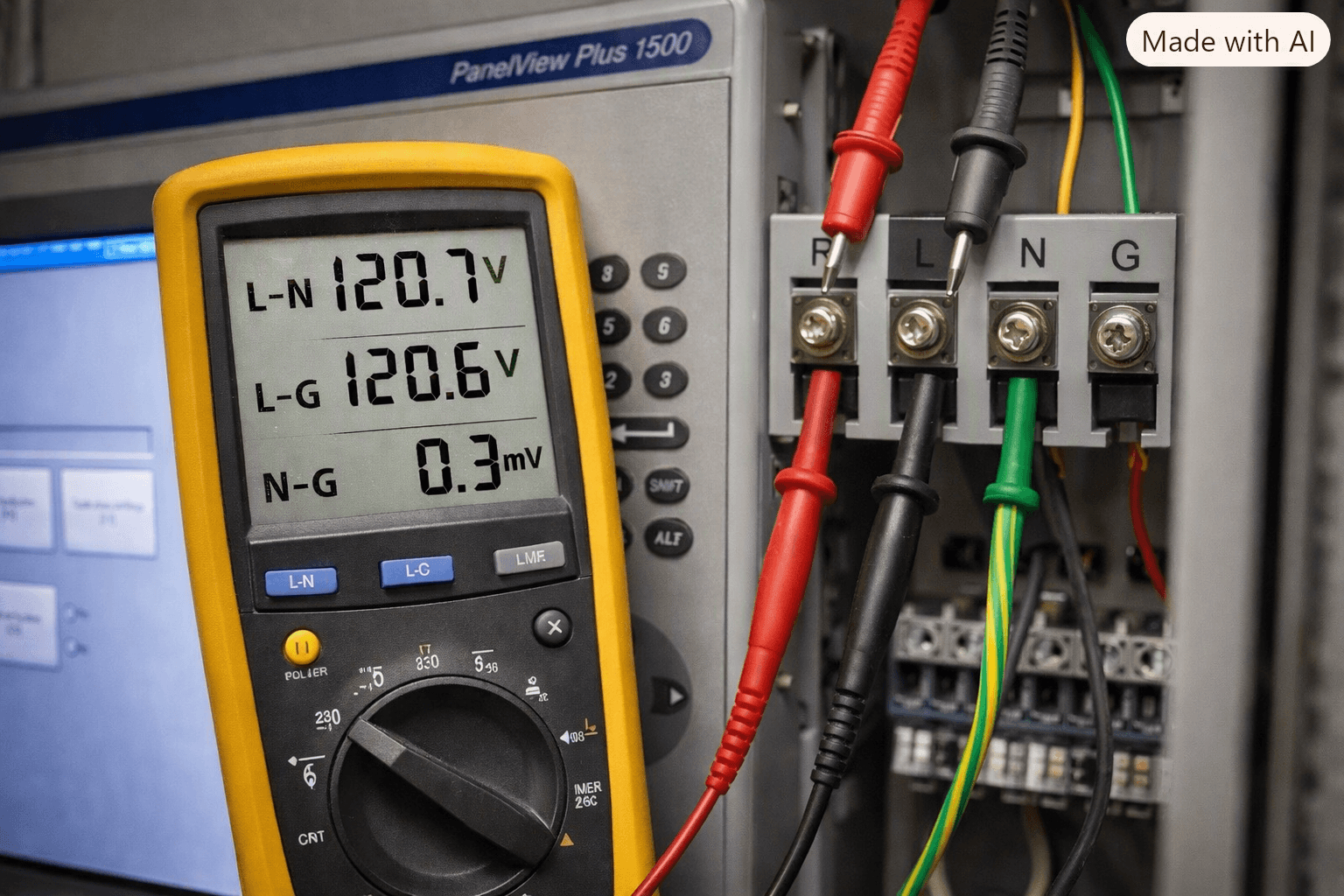
Measure voltage directly at the PanelView Plus 1500 power terminals:
- Line-to-Neutral should be approximately 120 V AC (or the correct voltage for your specific model).
- Line-to-Ground should also be near 120 V.
- Neutral-to-Ground should be near 0 V.
A reading of roughly 60 V Line-to-Ground and 60 V Neutral-to-Ground usually indicates a missing or open ground conductor. Install a dedicated ground wire (minimum 14 AWG) rather than relying on the panel frame.
Tip from field experience: Many installations that “worked yesterday” develop floating grounds after vibration or loose terminals.
2. Bench Test with Known-Good Power
Isolate the terminal:
- Disconnect all cables (power, Ethernet, serial).
- Wait at least 30 seconds for capacitors to discharge.
- Apply verified clean 120 V AC (or the correct voltage for the catalog number) directly to the unit.
- Observe the screen and Ethernet port LEDs.
Diagnostic table:
| Symptom | Probable Cause | Recommended Action |
|---|---|---|
| Screen lights, Ethernet LEDs flash | External power/wiring issue | Fix facility wiring and grounding |
| Screen black, Ethernet LEDs off | Internal power supply failure | Repair or replace logic module / unit |
| Screen black, Ethernet LEDs blink | Backlight failure only | Replace backlight (2711P-RL15C) or display module |
3. Check Backlight and Display
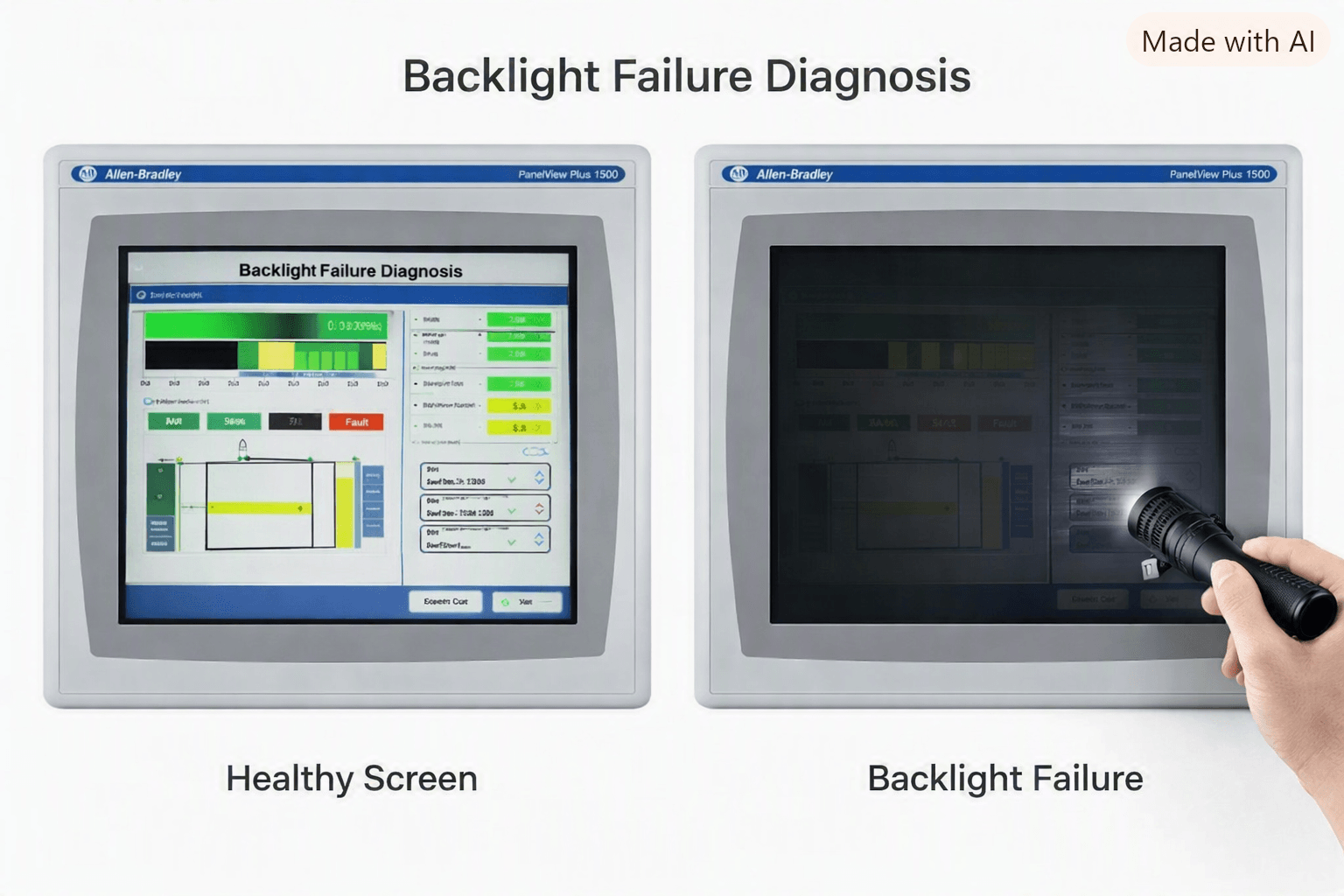
A classic early symptom is intermittent recovery after tapping the screen. This often indicates a failing CCFL backlight (catalog number 2711P-RL15C for the PanelView Plus 1500).
- Shine a bright flashlight at an angle across the screen in a dark area. A faint image means the LCD is working but the backlight has failed.
- Listen for the faint hum or relay click that normally occurs at power-up.
The backlight is field-replaceable. The replacement kit includes the bulb, mounting hardware, and instructions. Alternatively, replace the entire display module (for example 2711P-T15C4 series) which comes with a pre-assembled screen and backlight.
4. Observe Status LEDs and Boot Sequence
Refer to the official PanelView Plus user manual (Publication 2711P-UM001):
- During normal startup the FAULT (red) LED should flash briefly then stay off; the COMM (green) LED should be on.
- Both LEDs remaining off usually indicate power-supply or logic-module failure.
- Solid red LED often points to a non-recoverable hardware fault.
If the terminal powers but never shows the Rockwell splash screen, the problem may lie in the logic module, CompactFlash card, or display ribbon cable.
5. Additional Checks
- Confirm the correct power type for your exact catalog number (most 1500 models use 120 V AC; some variants use 24 V DC).
- Reseat the logic module and display module if accessible.
- For units that go blank only after long idle periods, check the Backlight Timeout setting in the FactoryTalk View ME runtime application and set it to “Never” if needed.
- EEPROM corruption on the display bezel (documented in Rockwell knowledge base) can produce black, white, or blooming screens on 1500 models; a firmware update to 4.00.10 or later often resolves it.
When Replacement Parts Are the Fastest Solution
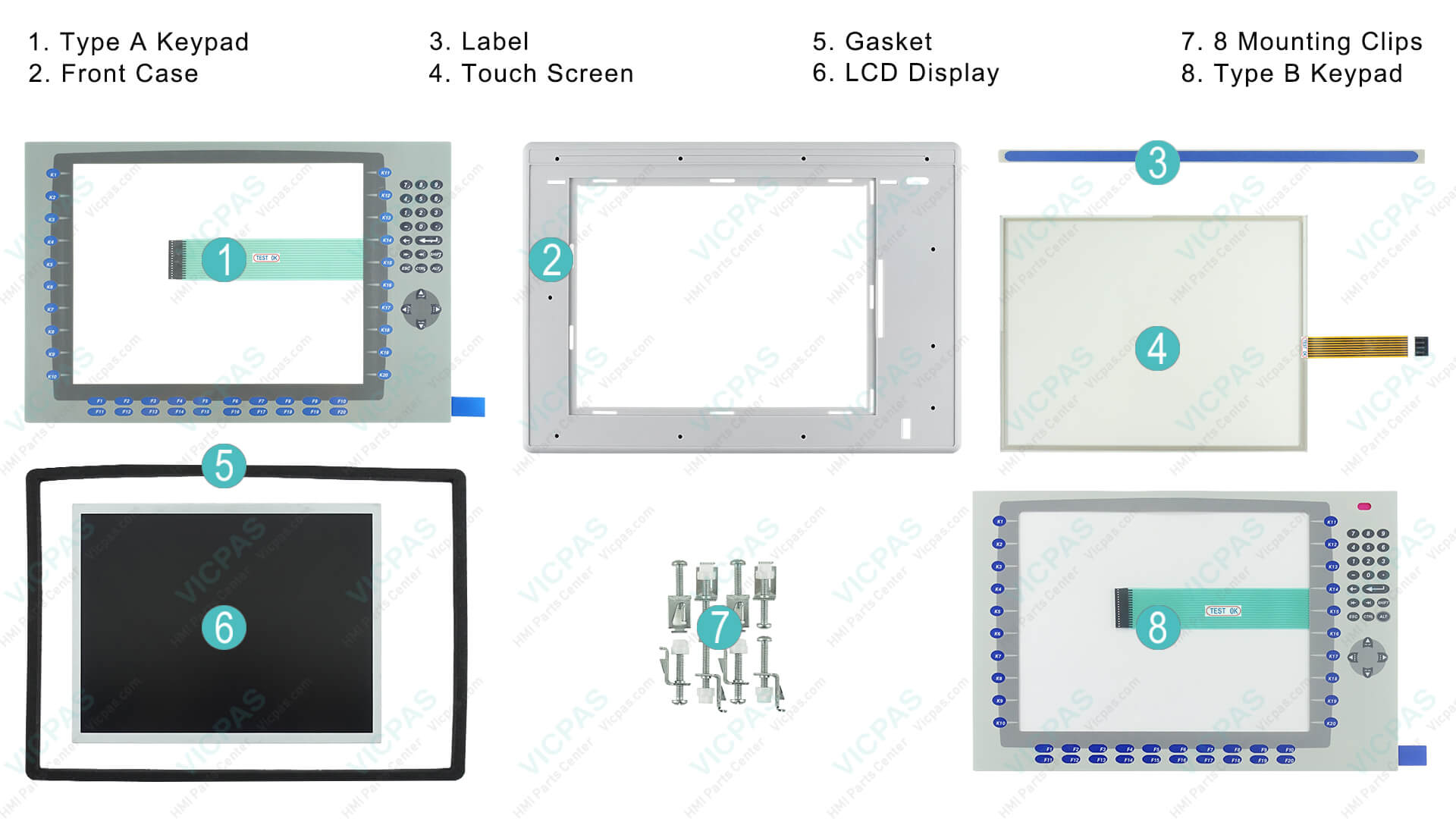
If bench testing confirms the terminal itself is at fault, the most common replaceable items are:
- Backlight kit – 2711P-RL15C
- Complete display / touch module
- Membrane keypads and protective overlays
- Logic modules
VICPAS specializes in exactly these components for the Allen-Bradley PanelView Plus 1500 series. With more than 20 years of experience supplying HMI operator panel parts, VICPAS maintains a large inventory of touchscreens, membrane keypads, LCD displays, protective films, and complete assemblies. Most items ship the same day with worldwide express options (DHL, UPS, FedEx, TNT) and carry a 1-year VICPAS warranty. There is no minimum order quantity, and custom or hard-to-find parts can be produced quickly.
Browse the full range of PanelView Plus 1500 replacement parts here:
https://www.vicpas.com/products2110314/PanelView-Plus-1500.htm
For brand background, support policies, and customization capabilities, visit:
https://www.vicpas.com/comm01.htm
Whether you need a single backlight, a complete touchscreen assembly, or urgent worldwide shipping, VICPAS provides tested, ready-to-install solutions so you can get your PanelView Plus 1500 back online with minimal downtime.
Frequently Asked Questions
Can I replace the backlight myself?
Yes. The 2711P-RL15C is designed as a field-replaceable component. Follow the instructions included with the kit or replace the entire display module for a simpler swap.
Why did the screen recover temporarily when tapped?
This is a classic early sign of a failing backlight inverter or CCFL tube. The mechanical shock briefly restores contact or causes the lamp to strike.
Is the PanelView Plus 1500 always 120 V AC?
Most catalog numbers such as 2711P-T15C4A1 use 120 V AC. Always verify the nameplate or catalog number for your specific unit.
What if the Ethernet LEDs never light?
This usually indicates the internal power supply or logic module is not powering up. Bench testing with clean power is the quickest way to confirm.
Conclusion
A black screen or failure to light on an Allen-Bradley PanelView Plus 1500 is rarely a complete mystery. Start with power and grounding verification, move to a controlled bench test, then evaluate the backlight and status LEDs. In the majority of cases the problem is either an external wiring issue or a replaceable backlight/display component.
When replacement parts are required, choosing a specialist supplier with deep inventory and proven quality shortens downtime. VICPAS offers ready-to-ship touchscreens, keypads, displays, and related components for the PanelView Plus 1500, backed by a 1-year warranty and fast global shipping.
If you are currently facing this issue, measure the voltages first, then contact VICPAS for the exact part you need. Getting the right component quickly is often the difference between hours and days of lost production.
Need a specific PanelView Plus 1500 part today? Visit the product page or request a fast quote at https://www.vicpas.com.
References
- Troubleshooting PanelView Plus 1500 That Won’t Light Up – Industrial Monitor Direct
- Allen Bradley PanelView Plus 1500 Not Lighting Up – PLCTalk Forum
- Resolving PanelView Plus 1500 Blank Screen Wake Failure – Industrial Monitor Direct
- Troubleshooting Black Screen on PanelView Plus – Infoneva
- Rockwell Automation Knowledgebase – Display Bezel EEPROM Corruption (PanelView Plus 700-1500)
- Allen-Bradley PanelView Plus 2711P User Manual (Publication 2711P-UM001)
- AB Panel View Terminal Won’t Wake Up – PLCTalk Forum
- PanelView Plus Boot Failure After Power Loss – Infoneva
- Allen-Bradley PanelView Plus 2711P User Manual – Manualzz
- VICPAS – PanelView Plus 1500 Replacement Parts
- VICPAS – Company & Brand Introduction
 Fast Quote
 Fast Quote
 Worldwide Shipping
 12 Months Warranty
 Customize Service
- Phone
- *Title
- *Content
