
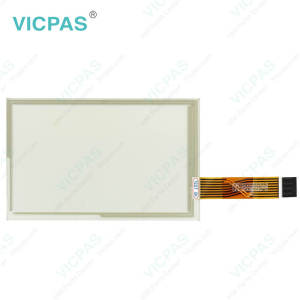
XCN-1260 137000 12.1 Touch Screen Monitor LCD Display


| Share | |
|---|---|
| Categories | Trimble |
| Brand | VICPAS |
| Model | XCN-1260 137000 12.1 |
| Brand | Trimble |
| Warranty | 365 Days |
| Product Line | Trimble series |
| Supply | XCN-1260 137000 12.1 Touch Screen Panel LCD Screen |
| Model | XCN-1260 137000 12.1 |
| FOB port | Guangzhou, Shenzhen, Hongkong |
| Terms of Payment | Western Union, MoneyGram, T/T, Paypal, PayPal, Credit Card |
Trimble series XCN-1260 137000 12.1 LCD Display Panel Touch Screen Tablet Repair Part
Order each part separately is available
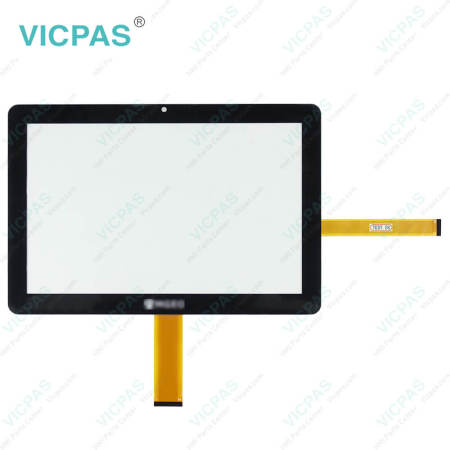
The Trimble® XCN-1260 137000 12.1 display is an in-cab XCN-1260 137000 12.1 touchscreen display that provides affordable guidance, steering and precision agriculture functionality. The Trimble XCN-1260 137000 12.1 display Touch screen panel glass includes a built-in GPS receiver that you can upgrade to receive GLONASS satellite signals. The Trimble XCN-1260 137000 12.1 display Touch Panel is used in agricultural applications to maximize efficiency in activities such as planting, spraying, spreading and strip tilling.
VICPAS supplies XCN-1260 137000 12.1 Trimble LCD Screen and Touchscreen glass with 365 Days warranty and support Urgent Worldwide Shipping.
Specifications:
The table below describes the parameters of the XCN-1260 137000 12.1 Trimble HMI Panel Glass LCD Display Screen.
| Part Number: | XCN-1260 137000 12.1 |
| Screen diagonal: | 12 inch |
| Warranty: | 365 Days |
| Product Line: | Trimble Series |
| Input Power: | +24 VDC +/-20% |
| Resolution: | |
| Storage Temperature: | -20°C to 60°C |
| Display Size: | STN |
Related Trimble Series Part No. :
| Trimble HMI | Description | Inventory status |
| GFX-1060 | Trimble Touch Screen Glass LCD Display Replacement | In Stock |
| CASE IH AFS PRO 1200 Display | Trimble Touch Panel Glass Replacement Repair | Available Now |
| GFX-1260 12.1 | Trimble Touch Screen Panel Repair Replacement | In Stock |
| GFX-750 | Trimble LCD Display Panel Touch Screen Monitor Replacement | Available Now |
| XCN-1050 121000 | Trimble LCD Screen Touch Digitizer Repair | In Stock |
| XCN-1060 134000 | Trimble HMI Touch Screen Organizer LCD Display Screen Replacement | In Stock |
| XCN-1260 137000 12.1 | Trimble Touch Panel Glass Replacement | In Stock |
| XCN-750 124000 | Trimble LCD Display Panel Touch Screen Panel Repair Replacement | Available Now |
| Trimble HMI | Description | Inventory status |
Trimble Series HMI Manuals PDF Download:
FAQ:
Question: What are the steps to connect the Trimble XCN-1260 to a GNSS controller?
Answer: To connect the Trimble XCN-1260 display to a GNSS controller, follow these steps:
Preparation
1. Gather Required Equipment:
- Ensure you have the XCN-1260 display and the compatible GNSS controller (NAV-500 or NAV-900).
- Have the necessary cables ready for connection.
Connection Steps
2. Mount the Display:
- Install the XCN-1260 display in a suitable location within the vehicle, ensuring visibility and accessibility.
3. Power Connections:
- Connect the power cable from the display to a suitable power source in the vehicle.
4. Connect to GNSS Controller:
- Use an Ethernet cable to connect the XCN-1260 display to the GNSS controller.
- Plug one end of the Ethernet cable into the "Ethernet port/power in" on the GNSS controller.
- Connect the other end to the corresponding Ethernet port on the XCN-1260 display.
5. Check Connections:
- Ensure that all connections are secure and that there are no loose cables.
6. Power On:
- Turn on both the XCN-1260 display and the GNSS controller.
7. Configure Settings:
- On the XCN-1260, navigate to the settings menu.
- Select "Connections" and ensure that the GNSS controller is recognized.
- If necessary, configure any additional settings related to guidance or data input.
8. Verify Connection:
- Once powered on, check that the display is receiving data from the GNSS controller.
- You may need to perform a test run to ensure that guidance systems are functioning as expected.
Post-Connection
9. Calibration and Configuration:
- After establishing a connection, calibrate both devices as needed for your specific operational requirements using the Precision-IQ interface.
For detailed information, refer to the [GFX/XCN Display Series Installation and User Guide] or consult with your authorized Trimble dealer for assistance.
- 加载中···

- Phone
- *Title
- *Content
 Fast Quote
 Fast Quote
 Worldwide Shipping
 12 Months Warranty
 Customize Service
- Phone
- *Title
- *Content
